

Access export templates for viewing, using, and editing outside of the activation workflow context. This allows you to preview a particular export template in advance of designing an activation (or create one in advance).
View an export template
To view an export template:
-
Navigate to the Smart Activation > Export Templates page.
-
Click the View button to the right of the export template to view.
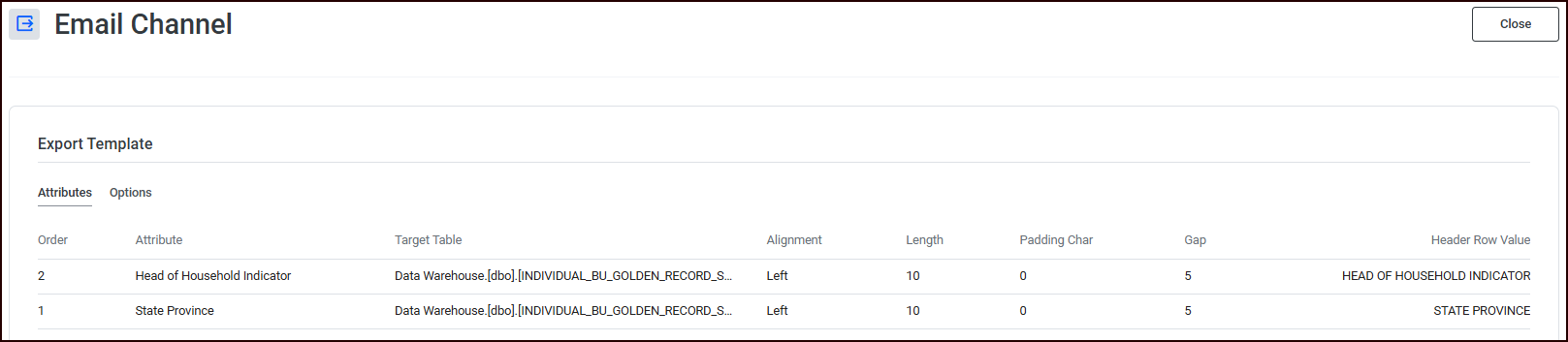
-
When you’re done, click Close.
Create an export template
To create an export template:
-
Navigate to the Smart Activation > Export Templates page.
-
Click Create New Template.
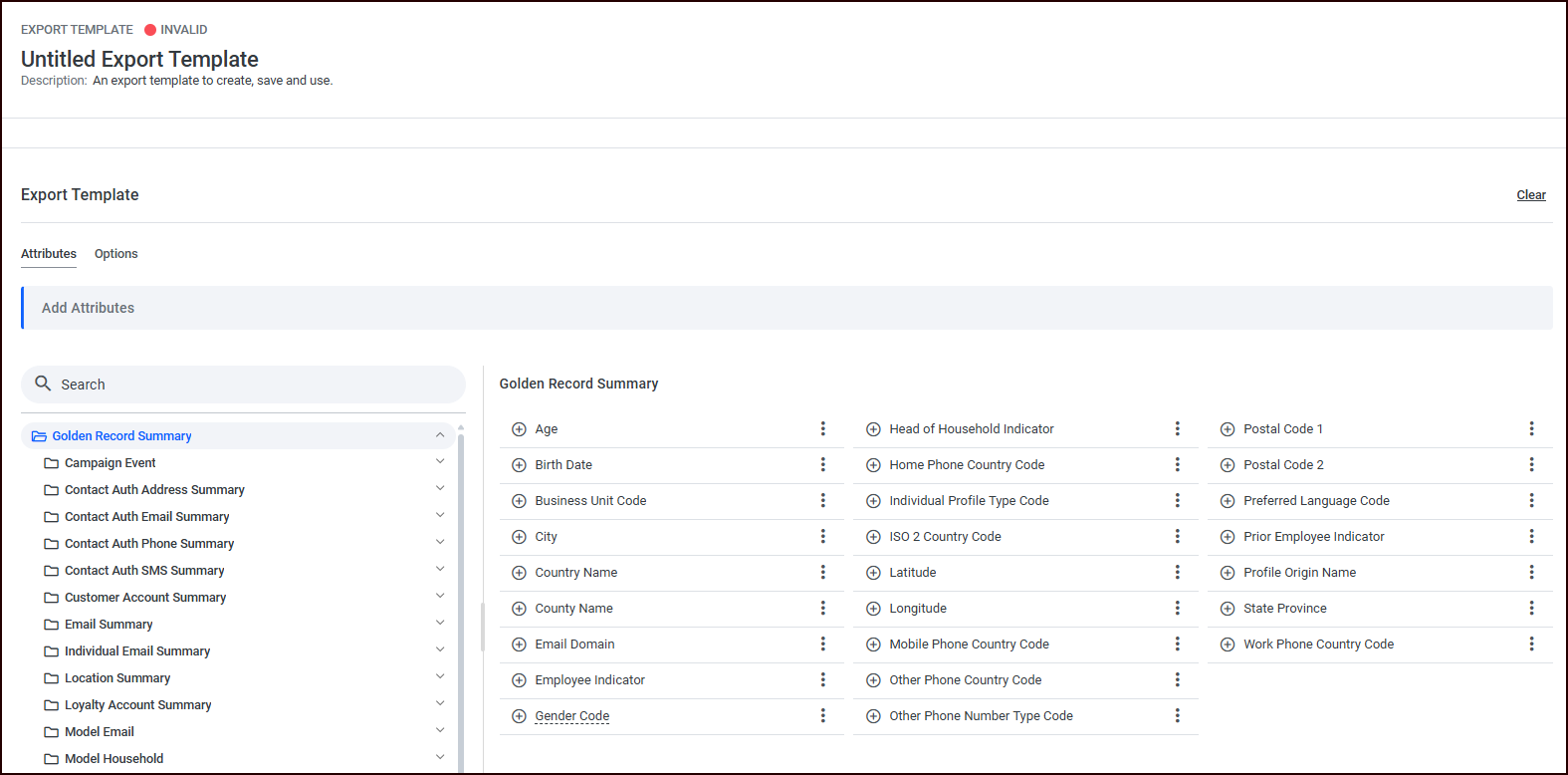
-
Add Attributes as needed.
-
Click the Options tab to specify options.
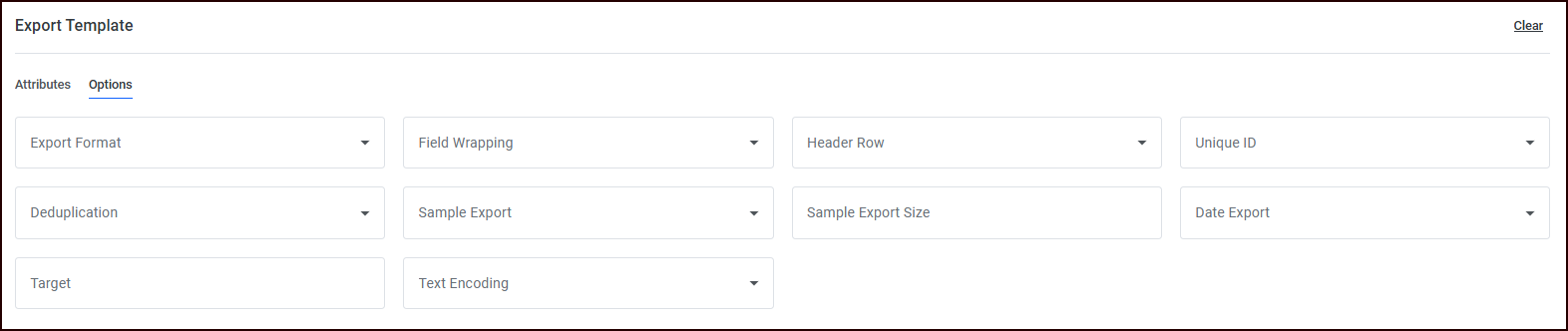
-
Click Save to save your new template or Cancel to discard it.
Edit an export template
To edit an export template:
-
Navigate to the Smart Activation > Export Templates page.
-
Click the vertical ellipsis menu to the right of the export template to edit, and choose Edit.
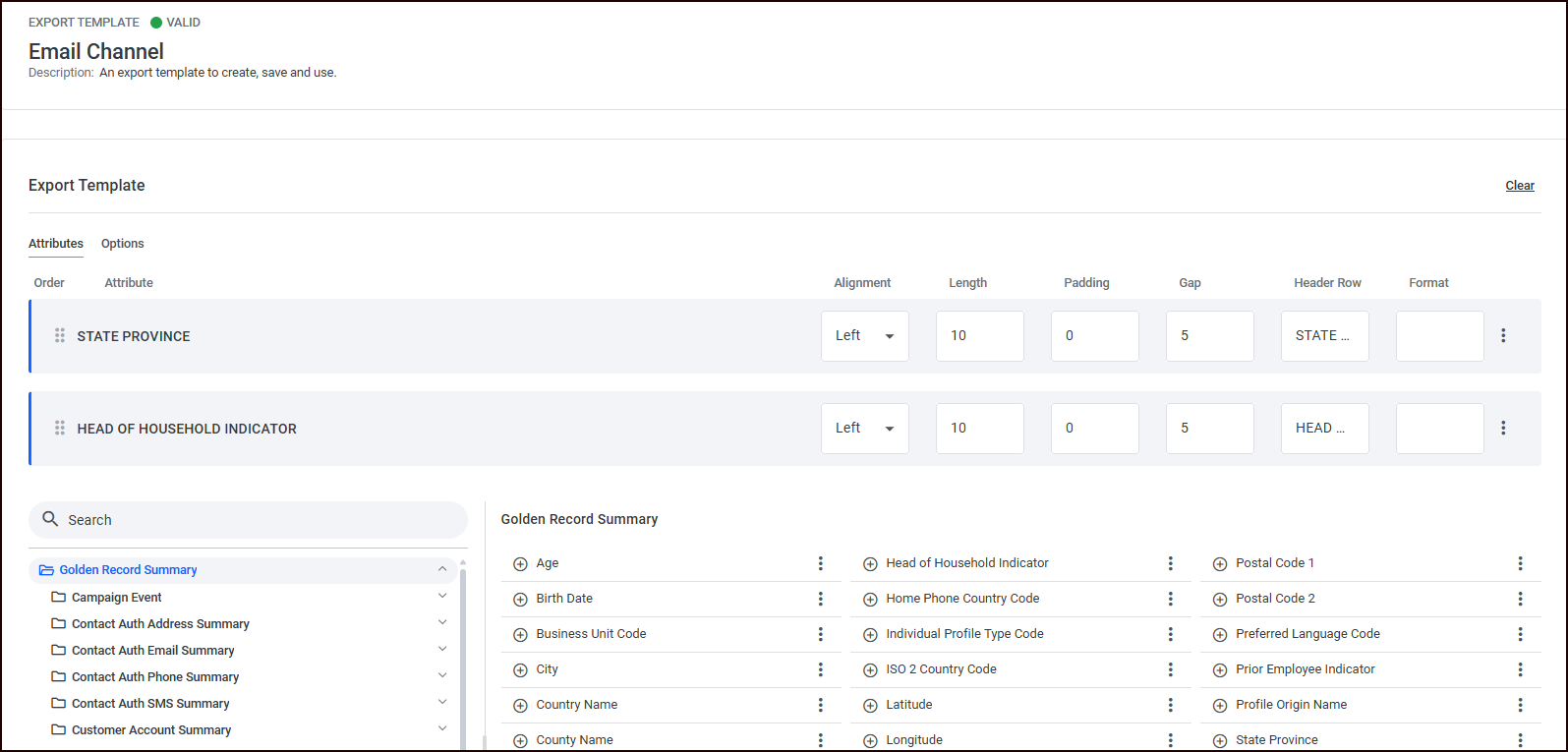
-
Edit the Attributes as needed.
-
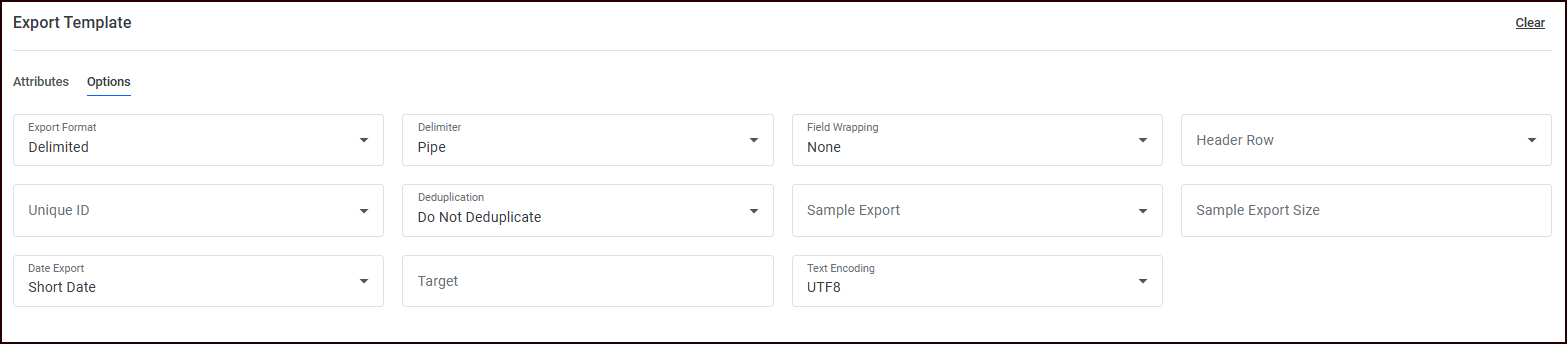
Click the Options tab to edit the export template options.
-
Click Save to save your edits or Cancel to discard your edits.