

Overview
This tab is only shown if the cursor placed within a rich text table, and consists of Table, Rows, Columns, Merge, Cell Size and Alignment sections.

Table Section
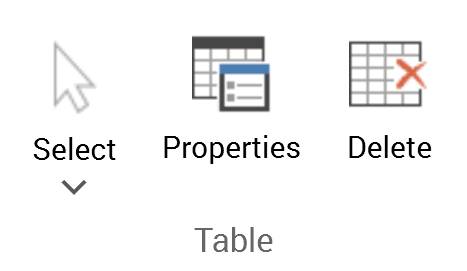
The Layout tab’s Table section exposes the following commands:
-
Select: invocation of this option displays a submenu that gives access to the following:
-
Select Cell
-
Select Column
-
Select Row
-
Select Table
-
-
Properties: this button allows you to display the Table Properties dialog box, which is documented separately.
-
Delete: invocation of this option removes the entire table without display of an ‘Are You Sure?’ dialog.
Rows Section
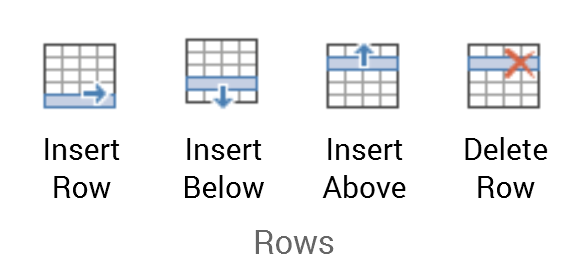
The Layout tab’s Rows section exposes the following commands:
-
Insert Row
-
Insert Below
-
Insert Above
-
Delete Row
Columns Section
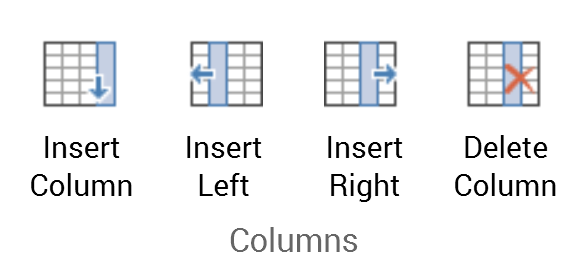
The Layout tab’s Columns section exposes the following commands:
-
Insert Column
-
Insert Left
-
Insert Right
-
Delete Column
Merge Section
The Layout tab’s Merge section exposes a single command:
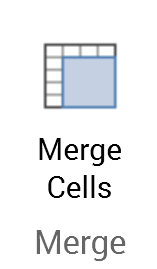
Merge Cells
Cell Size Section
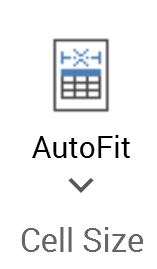
The Layout tab’s Cell Size section exposes a single command:
-
AutoFit:
-
AutoFit to Window
-
Fixed Column Width
-
Alignment Section
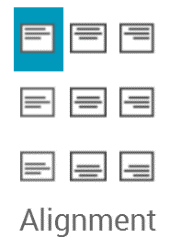
The Layout tab’s Alignment section exposes the following settings, which facilitate alignment within a table:
-
Align Top Left
-
Selected by default
-
-
Align Top Center
-
Align Top Right
-
Align Center Left
-
Align Center
-
Align Center Right
-
Align Bottom Left
-
Align Bottom Center
-
Align Bottom Right