Overview
The files that you use to perform your customer and prospect communications—such as selection rules, audiences, offers, and interactions—are all created and managed in a series of ‘designers’, each tailored to a specific file type.
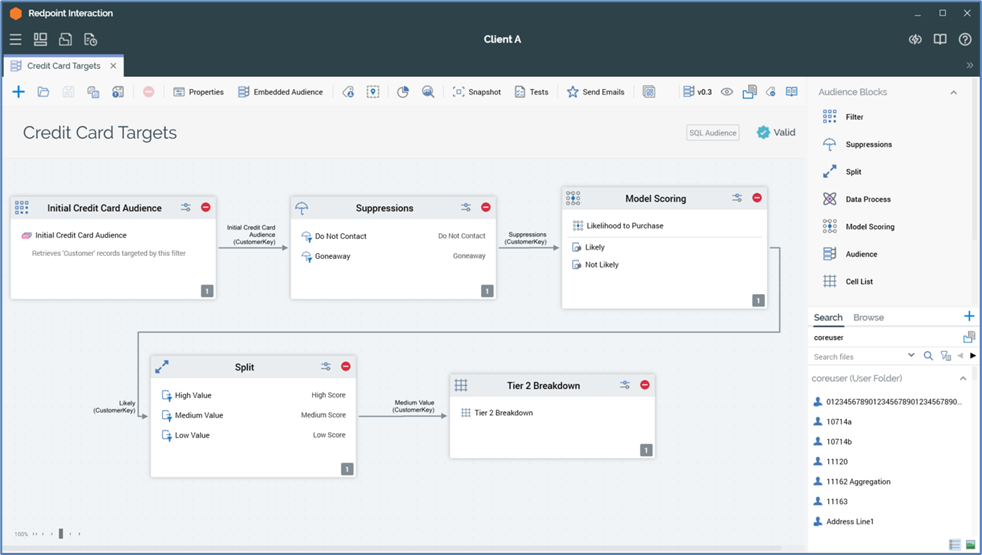
Most designers display a single file…for example, the Audience Designer.
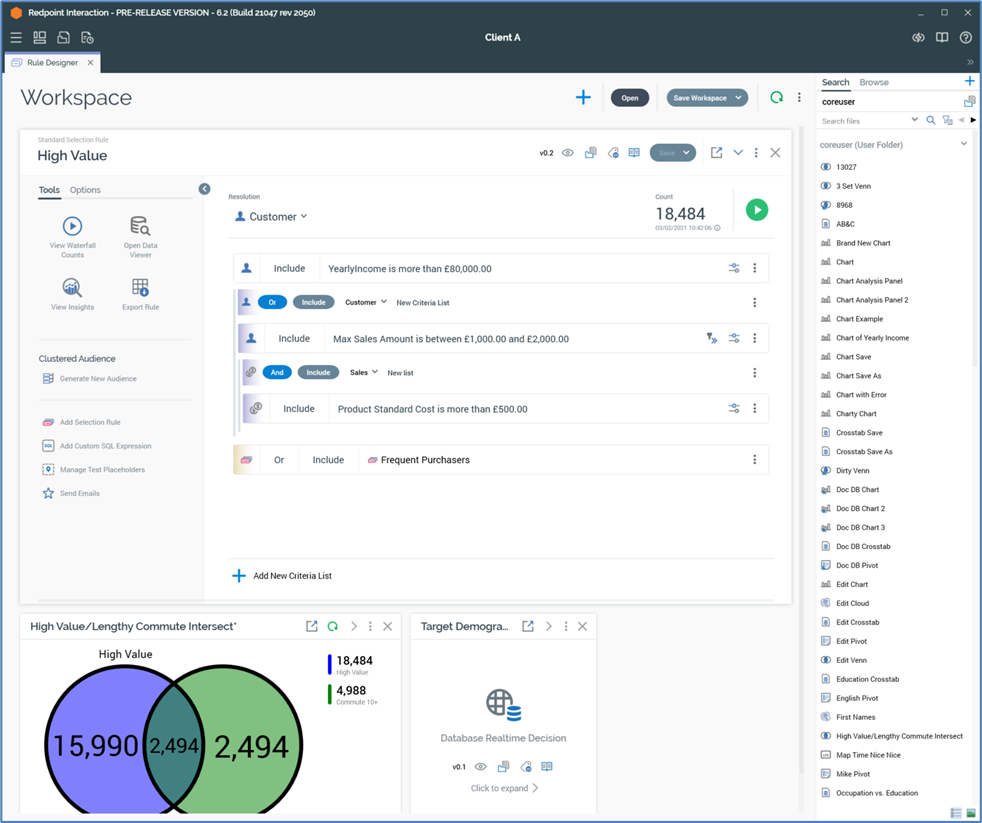
However, the Rule Designer is able to show more than one file concurrently.
Designer toolbars
RPI’s designer interfaces feature a toolbar that provides access to functionality relevant to the current context. All toolbars are different; this example comes from the Audience Designer.

Each designer’s toolbar is documented separately.
The following are shown to the right of a designer toolbar:
-
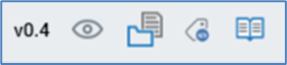
Version number: a read-only representation of the file’s current version number (following its assignment at its initial saving) is displayed.
-
Follow/Unfollow File: allows you to take an interest in a specific file, such that alerts are sent to you on the undertaking of activities in respect of the same. Covered separately in this documentation.
-
File options: clicking this button displays a context menu, exposing the following options:
-
View File Information: displays the file’s details in the File Information Dialog (documented separately).
-
Open File Location for [filename]: opens the File System Dialog, displaying the contents of the folder in which the file is saved, with the file selected in the same context.
-
-
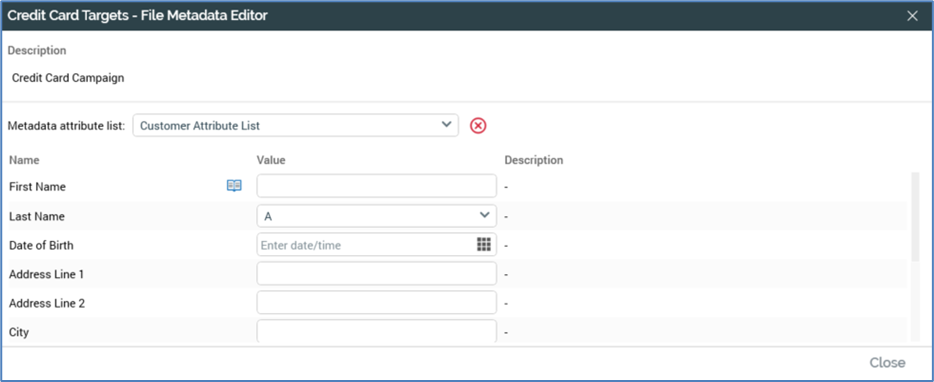
Manage Metadata for this file: this button is available prior to a file's initial save to the RPI file system. Clicking it displays the [Filename] - File Metadata Editor dialog. The dialog allows you to record metadata values in the context of a file. The dialog contains the following:
-
Description: you can optionally specify a description for the file in this field. The value provided can be up to 1000 characters in length.
-
Metadata attribute list: this dropdown list allows you to select a configured attribute list, which defines the set of metadata attributes in respect of which values can be captured for the file. Initially, a list is not selected, and the Metadata attribute list dropdown is displayed. You must select an attribute list in order to specify metadata attributes for a file.
-
Clear selected Metadata Attribute List: this button is only available when a Metadata attribute list has been selected. It allows you to clear the selected value.
-
Metadata attributes: prior to selection of a Metadata attribute list, this section displays the following message: “Please select a metadata attribute list to specify metadata attribute values for this file”.
-
Once a Metadata attribute list has been selected, the list of metadata attributes associated with the same are displayed. The following columns are shown:
-
Name
-
Open Linked Page: you can click the button to open a linked Page in the Linked Page Browser if applicable.
-
Value: a writeable field. The attribute's default value is displayed (if appropriate). When a value is specified, a Revert button shown; invocation removes the override and reverts the value to the default.
-
Description
File metadata is persisted as XML in the FileMeta column in the op_Files table in the Interaction_XXX database.
When file metadata has been overridden, the Manage Metadata button icon is augmented with a light blue indicator.

-
View Linked Page Options: allows you to view or manage a Wiki or web page associated with the item you are currently working on. If you have established the context of a current item, if the item is not linked to a Wiki page, the menu exposes the following item:
-
Link File to Page: displays the Choose Linked Page dialog, which is covered elsewhere in the Framework documentation.
-
If the current item is linked to a Wiki page, the menu displays the following items:
-
Open Linked Page: displays the linked Wiki or web page in the Linked Page Browser.
-
Change Linked Page: displays Choose Linked Page dialog, which is covered elsewhere in the Framework documentation.
For files opened in the Rule Designer, the same are shown at panels’ footers.
When there is insufficient screen real estate to display all of a toolbar’s buttons (for example, if the RPI Window has been restored and reduced in size), an overflow arrow is displayed to the right of the toolbar.
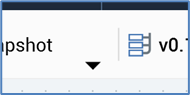
Clicking the arrow provides access to the otherwise inaccessible menu items.