

The quick access menu allows you to open an RPI interface in a separate tab. It can be accessed at any time using the button displayed to the top left of the RPI interface.

When you invoke the quick access menu, it appears as follows.
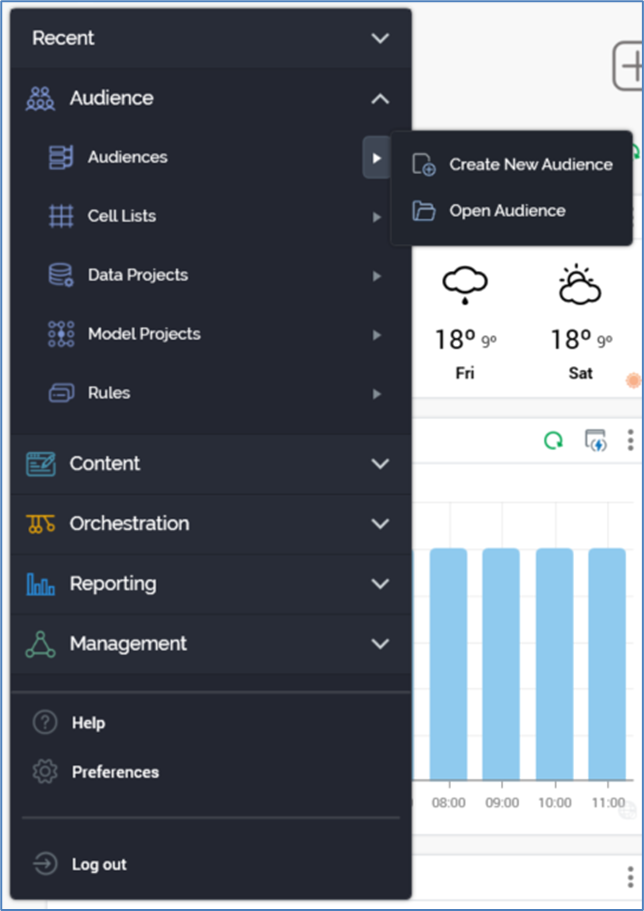
It provides access to RPI functionality. It contains the following:
-
Recent: this section lists up to 6 recently-used interfaces in alphabetical order. It is expanded by default when the RPI client application is launched (other sections are rolled up by default).
-
Audience:
-
Audiences
-
Cell Lists
-
Data Projects
-
Model Projects
-
Rules
-
-
Content:
-
Assets
-
Export Templates
-
Landing Pages
-
Offers
-
Smart Assets
-
-
Orchestration:
-
Data Connectors
-
Interactions
-
Realtime Layouts
-
Subscription Groups
-
-
Reporting:
-
Dashboards
-
Reporting Hub
-
Single Customer View
-
-
Management:
-
Configuration
-
Operations
-
Wiki
-
-
Help
-
Preferences
-
Log Out
Within many of the options in the menu further sub-options are available by clicking the arrow to the right.
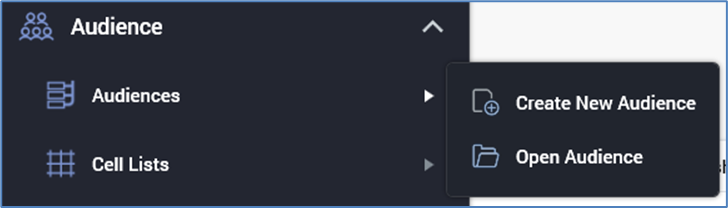
Details of specific designers’ invocation are described in each interface’s own documentation.
You are only able to open a single instance of each of the Operations interface and Configuration Workbench.
The quick access menu is removed from display when you click elsewhere within or outside RPI, or when a tab is opened.