

Overview
RPI is accessed via a Sign in to Redpoint Interaction dialog. Prior to display of the dialog, a splash screen is shown momentarily.
In a short while, the Sign in dialog is shown.
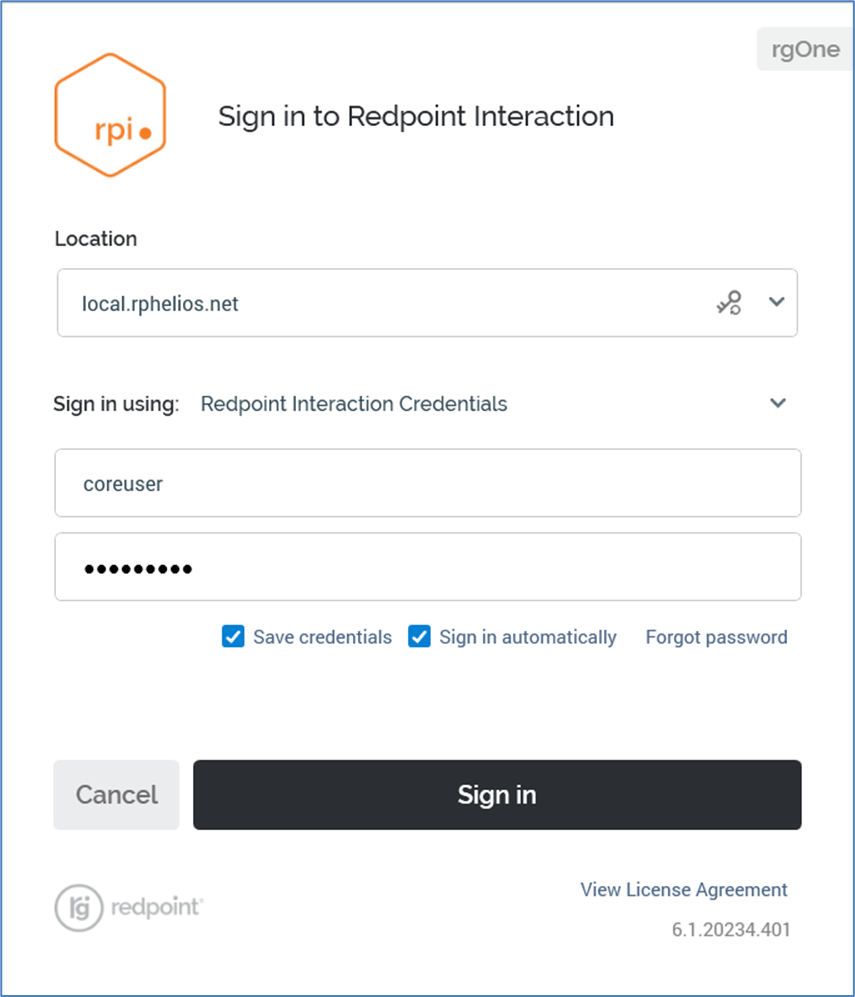
The dialog contains the following:
-
Location: this combo box allows you type in the name (and, optionally, port number) of the RPI server to which you wish to connect. Servers to which you have previously successfully connected are listed in the dropdown. The most recent server to which you connected is selected by default.
-
Retrieve settings…: the combo box can be populated by clicking the Retrieve settings from the server to enable signing in using external authentication button, which is displayed to the right of the Location to field.
Clicking the button retrieves the latest Active Directory server settings and populates the chooser with any available Active Directory sign in methods. The button is disabled when signing in without saved credentials, and, when signing in using saved credentials, it is hidden until Cancel is clicked.
-
Sign in using: depending on your current RPI server configuration, you can choose to sign in using at least one, and up to all of the following methods:
-
Redpoint Interaction Credentials (always available)
-
Azure Active Directory (available if configured)
-
Active Directory Federation Services (ADFS) (available if configured)
-
OpenID Authentication (available if configured)
-
You can select your method of sign in using the Sign in using a dropdown. Each sign in method is described separately.
The property defaults to its most recently-used value.
-
Username/Password: these fields are displayed if signing in using RPI Credentials. If shown, they are mandatory. Their usage is described elsewhere in the documentation.
-
Save credentials: this checkbox is displayed when signing in using RPI Credentials. It is unchecked by default. Its usage is described elsewhere in the documentation.
-
Sign in automatically: this checkbox is unchecked by default. Its usage is described elsewhere in the documentation.
-
Forgot password?: this button is displayed if signing in using RPI Credentials. Its usage is described elsewhere in the documentation.
-
Cancel: clicking this button removes the Sign in to Redpoint Interaction dialog from display.
-
Sign in: clicking this button starts the RPI sign in process.
-
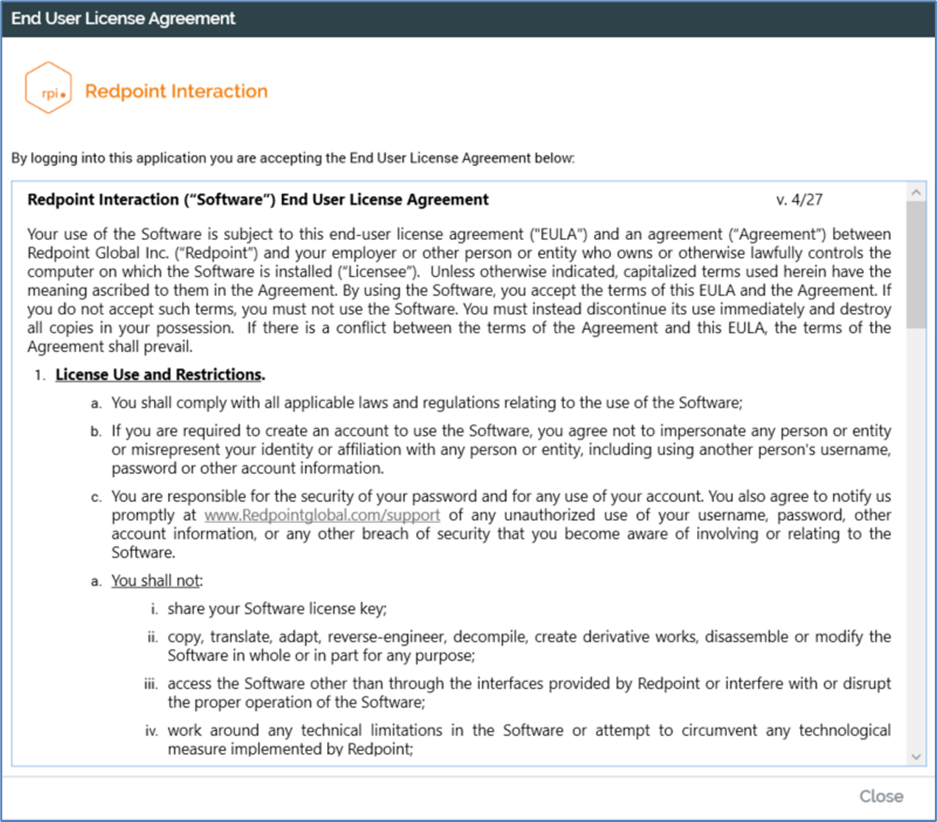
View License Agreement: clicking the link at the bottom of the dialog displays the RPI End User License Agreement in a separate Window.
-
RPI build number: hovering over this property displays the date and time the build was created.
Signing In Using Redpoint Interaction Credentials
To sign in using Redpoint Interaction Credentials:
-
Select a server to which to connect from the drop-down list. You can also enter one manually (including a specific port number, if required). After each successful sign in to a new server, a new entry is added to the drop-down. If cluster configuration setting AllowSavingLoginDetails is set to False, you must always select a server when signing in.
-
Enter your user name and password. Any preceding or trailing spaces are removed from the values you enter.
-
Click Sign in.
A rotating icon is shown at the Sign in button while the client application attempts to connect to the server.
Following a successful sign in, the RPI Home Page is displayed.
When you connect to the RPI server the connection is entirely secure, being made using the HTTPS (Hypertext Transfer Protocol Secure) protocol.
If you attempt to sign into an RPI server with a client application version number that is higher than the server, your sign in attempt will fail and an error message will be shown.
If Caps Lock is set to On when the Sign in dialog is displayed and the cursor is placed in the Password field, a message is shown:
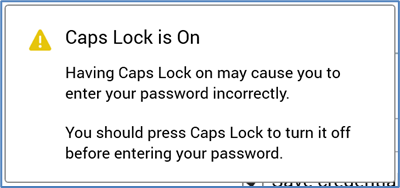
The message is removed from display when you switch Caps Lock off.
A Save credentials checkbox (unchecked by default) is shown at the bottom of the Sign in dialog. If you check this option, and cluster configuration setting AllowSavingLoginDetails is set to True, on successful sign in, your encrypted credentials are written to your local user configuration on your client machine.
A Sign in automatically checkbox is shown to the right of Save credentials. It is enabled when Save credentials is checked. When RPI starts up, if Sign in automatically is unchecked, the Sign in dialog is presented, allowing stipulation of your username and password.
When checked, the Sign in dialog’s credentials and server details are replaced. You are then signed in without the need to enter credentials again.
If AllowSavingLoginDetails is set to False, credentials must always be supplied at sign in.
A Cancel button is shown; when you click it the full Sign in dialog is displayed, allowing you, for example, to change the server to which to sign in. Note that, in this case, you must re-enter your password to proceed.
If you have saved your credentials and need to upgrade your client following sign in, you may do so without the need to re-enter your password.
Signing In Using Azure Active Directory
To sign in using Azure Active Directory, your RPI server must have been configured to support this feature.
In addition, an Azure Active Directory user with an email address matching the RPI user as which you intend to sign in must exist and must have been granted appropriate privileges to access RPI.
To sign in using Azure Active Directory, select this option at the Sign in using chooser. When you do so, Username, Password, Forgot password? and Save credentials… are hidden.
On clicking Sign in, one or more Microsoft Sign In dialogs are displayed (depending on whether your credentials have been cached previously). Enter your credentials (if required) and follow the instructions therein. Upon successful authentication of the supplied credentials, the Sign In dialog is removed from display and, after a short delay, the RPI Sign in dialog is replaced with the Home Page (if you are able to access multiple RPI clients, you will first be asked to select one).
Signing In Using Active Directory Federation Services (ADFS)
To sign in using ADFS, your RPI server must have been configured to support this feature.
In addition, an ADFS user with an email address matching the RPI user as which you intend to sign in must exist and must have been granted appropriate privileges to access RPI.
To sign in using ADFS, select this option at the Sign in using chooser. When you do so, Username, Password, Forgot password? and Save credentials… are hidden.
If you are already signed in using Active Directory, and the credentials are valid in ADFS, you do not need to provide further credentials to sign into RPI.
If you are not yet authenticated, on clicking Sign in, an empty dialog is displayed, over which a Windows Security dialog is shown. Enter your credentials and click OK. Upon successful authentication of the supplied credentials, the dialogs are removed from display and, after a short delay, the RPI Sign in dialog is replaced with the Home Page (if you are able to access multiple RPI clients, you will first be asked to select one).
Signing In Using OpenID Connect
To sign in using an OpenID connect provider, select OpenID Authentication at the Sign in using dropdown in the Sign In dialog. Enter your OpenID Connect credentials in the Window provided to sign in.
Signing In: Multiple Clients Available
If you have access to more than one client within the current RPI server, when you provide your credentials successfully, a list of available clients is shown in the Sign in dialog’s Choose Client overlay.
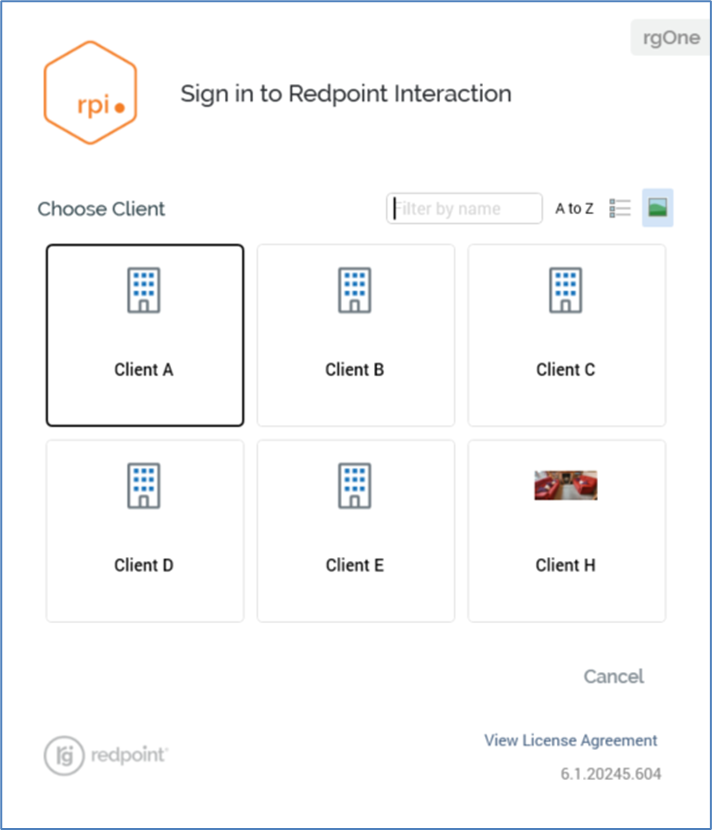
The Choose Client overlay is always displayed, even if only one client is available, if cluster configuration setting AlwaysShowClientsAtLogin is set to True. If the setting is False, and you only have access to a single client, the overlay is not shown.
You can click a client to sign into it. Hitting the Return key also signs into the currently-selected client.
You can enter text into the Filter by name field; as you do so, the list of clients is limited to display only those with a name containing the characters entered. The first displayed client is selected automatically. If no clients match the string specified, an advisory message is shown.
You can specify the manner in which clients are ordered in the Sign in dialog using the A to Z/Accessed toggle button. The latter setting presents most-recently accessed clients first.
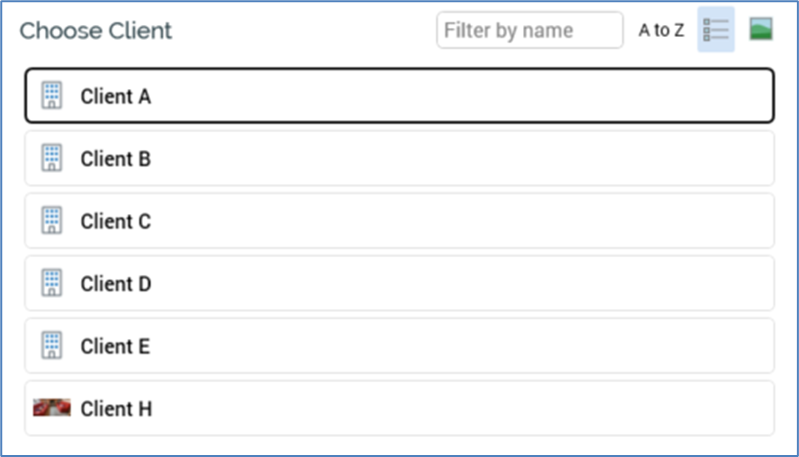
Buttons also allow you to display clients as a list…
…or as icons:
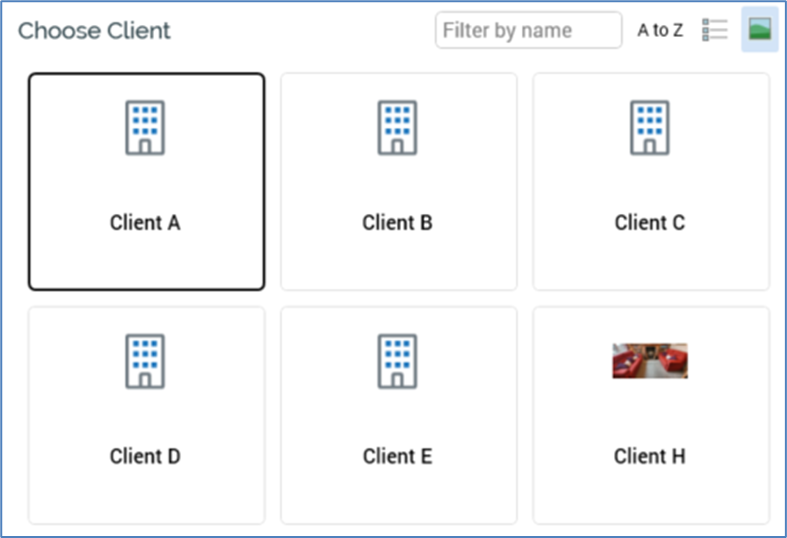
Your preferred setting is persisted between RPI sessions.
If you choose to Cancel at the Choose Client list, the Sign in dialog is redisplayed, and a message therein confirms the cancellation:
All clients hosted in a given RPI server installation are entirely autonomous, separate and secure from one another.
Signing in when in Maintenance Mode
A server administrator can place an RPI server into ‘Maintenance Mode’ – scheduled downtime that allows for system maintenance (e.g. a version upgrade) to be performed.
If you attempt to sign into RPI when in maintenance mode, a message is displayed at the Sign in dialog.
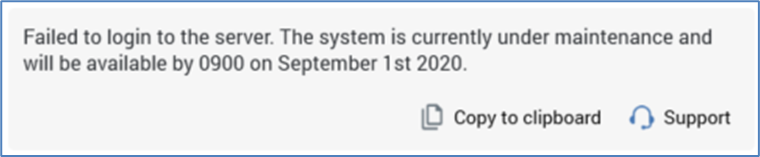
The maintenance mode message is configurable and can be set by a server administrator.
If you happen to be working in the RPI client when the server enters maintenance mode, a dialog is displayed advising of this fact. Changes to any files you are working on will be lost when you click OK, at which point the RPI client is shut down.
System Maintenance Messages
A server administrator can define one or more system maintenance messages. These are displayed when signing in, as pulse notifications (if more than one message has been configured, each is shown in turn; notifications are not sent if system configuration setting EnablePulseMessages is set to False).
System maintenance messages have start and expiry dates, between which they are active. Only active system maintenance messages are displayed.
Active system maintenance messages are also shown if added by the server administrator when you are already signed in (similarly, messages are shown if they become active when you are signed in).
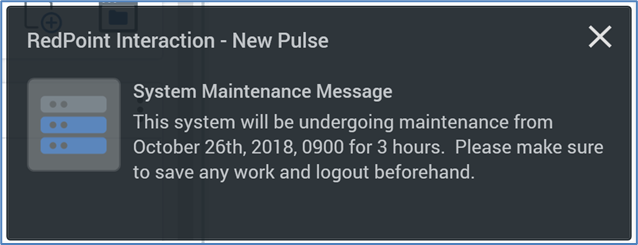
Full details of pulse notifications can be found elsewhere in the documentation.
Forgot Password
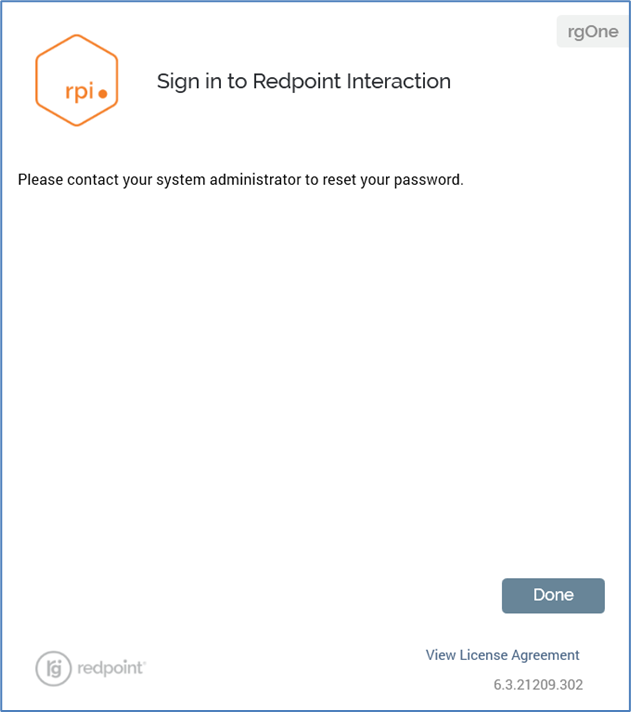
If you have forgotten your password, you can click on the Forgot password link within the Sign in interface. This displays the following interface.
Support
A Support button displayed at the Sign in dialog following a failed sign in attempt.

It is not shown until a sign in attempt fails. Invocation displays the Redpoint Helpdesk Support page in your default browser. The support page’s URL is defined by cluster system configuration setting ApplicationSupportURL. Following a successful sign in, your local client application’s support URL configuration setting is updated in accordance with the system configuration setting, ensuring that a failed sign in attempt always gives access to the most up-to-date support URL (should this value ever change).
Sign In Failures
If you are unsuccessful in an attempt to sign into RPI, details of why the sign in attempt failed are displayed. The following scenarios are covered:
-
Invalid username and/or password supplied.
-
Username not provided.
-
Password not provided.
-
User account not approved.
-
User account not associated with any clients.
-
Unable to connect to the server.
-
RPI not installed on the server you are attempting to sign into.
-
Entered an incorrect password [n] times (where [n] is defined by Interaction web.config setting MaxFailedAccessAttemptsBeforeLockout); account temporarily locked.
The time period after which your account is automatically unlocked is defined by Interaction web.config setting DefaultAccountLockoutTimeSpan (the value is expressed in minutes).
If desired, you can copy details of the failure message, along with any related trace information, to the clipboard.
Signing in When Already Signed In
Only one instance of the RPI client application per username per client per RPI server can be open at once on a given client machine.
If you launch a second client application instance and sign in using an already-signed in username, after a short delay, the following message is displayed at the original client instance.

You can click the Exit Application button to close the RPI client. Note that you are not given the opportunity to save any unsaved changes.
Automatic Sign Out
After a number of minutes' inactivity by a user matching client system configuration session InactiveSessionTimeout, she or he will be automatically signed out of the current RPI client session.
Automatic sign out does not occur if the setting's value is 0. When automatically signed out, the following message is displayed at the RPI user interface.
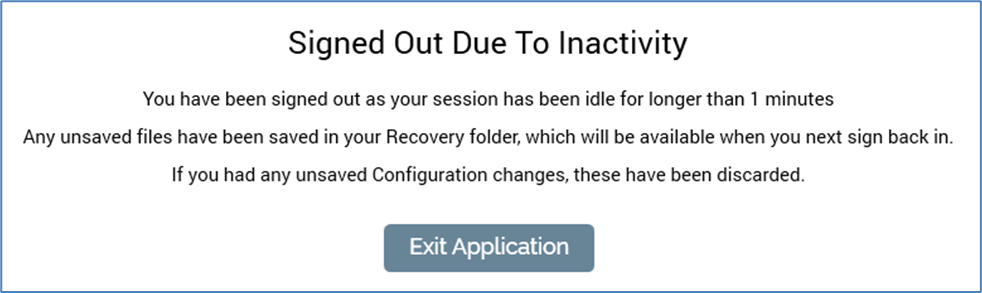
Clicking the Exit Application button closes RPI. No opportunity is presented to save any unsaved files.
When signing back into RPI following automatic sign out when one or more files were unsaved, the following is displayed at the top of the RPI Home Page.

Clicking the Open Recovery Folder button displays contents of the Recovered Files folder in the File System Dialog. This root-level, read-only folder can only be viewed by the current user. A recovered file's name is the same as at the point of auto-sign out, with '(yyyy-mm-dd hh:mm:ss n)' appended (the 'n' is used to differentiate files with the same name that were saved at same time. Its version is 0.1.
Clicking the Hide Message button to the top right removes message from display.
If using OpenID Connect to access RPI, a user will be logged out from the provider at automatic sign out.
Mismatched DLL Versions
If you attempt to sign in with an RPI client application that uses one or more DLL files with a different version to that installed on server, a message is displayed at the Sign in dialog:
'One or more loaded assemblies are incompatible with this version of the RPI client application. Copy details to clipboard to view the list of assemblies.'
The following is copied to the clipboard:
‘The following assemblies are incompatible with the RPI Client version (v[w].[xx] (Build [yy])):
[For each DLL]:
[DLL name] [w.xx.yy.z]’
You need to close and restart the client application to sign in, even if having replaced the DLL files at fault.
Invalid License
If you attempt to sign into an RPI server that is not configured with a valid license, you will still be able to launch the client application. However, access to all functionality therein is disabled – tasks are not displayed in widgets and the quick access menu and attempts to access Recent Items cause the supportive interfaces’ initialization to fail.
The RPI server must be configured with a valid license file for the installation to become usable again.
License Expiry
When you sign in and your license has from 60 to 15 days before expiry, a message is displayed to the top right of the RPI interface.

A tooltip is shown on hovering at the same:

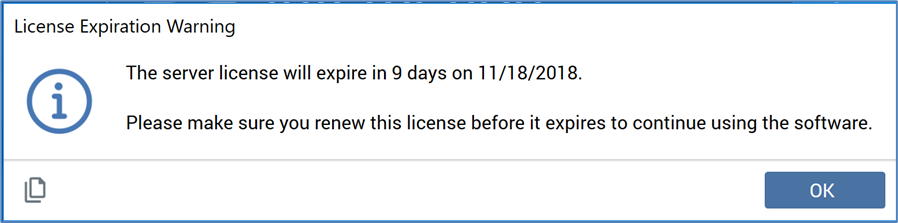
When you sign in and your license has 14 days or fewer before expiry, a dialog is displayed:
The message described above continues to be displayed at the top right of the RPI interface.