

Overview
Every activity in an Interaction Designer workflow normally takes its input from whichever activity sits immediately upstream of it. As of RPI v7.8, you're no longer limited to that single, fixed connection. You can now:
-
Point an activity at a different upstream activity's output instead of its immediate parent (Input source).
-
Split a workflow into multiple paths and bring them back together at one activity downstream (split and rejoin).
-
Send a contact back into an earlier activity for another pass through the workflow (loop-back, or reprocessing).
These three capabilities all use the same underlying mechanism: qualifying activities can now have more than one named input, and any input can point anywhere in the workflow instead of only to its immediate parent. This topic covers how each scenario works, where you configure it, and what to watch for.
For field reference, refer to Interaction Designer: Activity configuration panel.
For a one-time configuration step, refer to Split and rejoin configuration.
Why use split and rejoin
This functionality was built to solve specific design problems, for example:
-
Reunite contacts after a fork, without duplicating your workflow.
Say you send an email, wait two days, then check who opened it. Openers move into a three-email nurture journey. Non-openers get a resend and another two-day wait. Once those non-openers open the resend, they need the exact same nurture journey as the original openers. Before v7.8, giving both groups the same downstream experience meant building two parallel paths and maintaining the same activities twice. Now, the newly-qualified openers can rejoin the original openers at the first nurture email, so you build that journey once.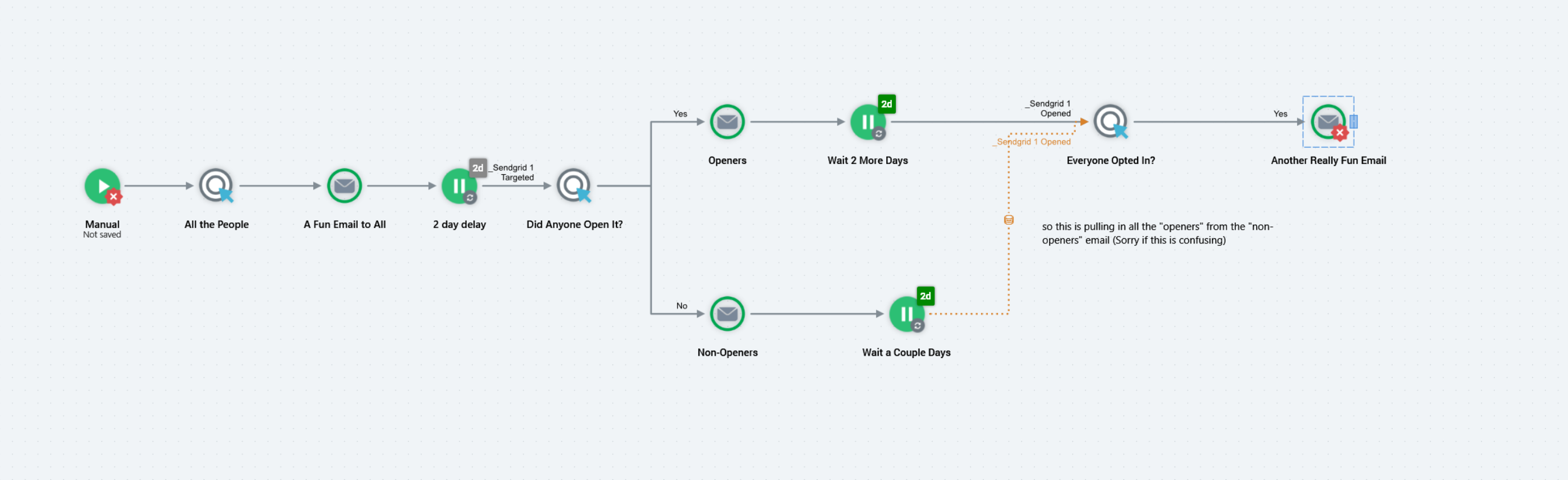
-
Reprocess a contact through the same activity more than once.
Loop a contact back to an earlier point in the workflow using Target contacts to reprocess it more than once; for example, to re-check an audience's qualifying criteria on a recurring basis until the contact qualifies, or to give a contact another attempt at a step it didn't complete. -
Reference an activity that isn't your immediate parent.
Use Input source to pull a population from any eligible upstream activity in the same workflow, or, for multi-workflow interactions, from an activity in a different workflow in the same interaction. This is useful when you're restructuring a workflow and don't want to rebuild everything downstream of the activity you moved.
Where the boundaries are
RPI enforces the boundaries below; where you find yourself working around one of them, the design is likely being pushed beyond what the feature was built for.
|
Designed for |
Not designed for |
|---|---|
|
Rejoining paths at an Interactive Activity |
Rejoining at any other activity type; the configuration is flagged as invalid |
|
Merging sources of a consistent type |
Mixing an audience-type primary input with a fulfillment-type additional source from a parallel branch. |
|
Advancing a contact as soon as it qualifies through any one source (a union) |
Holding a contact until it has completed every branch; rejoin is not a synchronization or wait-for-all step. |
|
Working from an activity that writes offer history |
Data Transfers, or Exports with Write offer history off; there is nothing downstream to read. |
|
Reading from an audience in the same, running workflow |
Reading audience working data from a different, already-completed workflow; it is not retained. |
|
Replacing an activity’s input |
Combining an activity’s original upstream input with a new source; the original connection becomes execution-sequence-only. |
|
Metadata sub-filtering on the primary input |
Metadata sub-filtering on additional (rejoin) input sources; not currently available. |
Because of the freedom that this functionality can give you when building interactions, please exercise caution and test thoroughly before promoting to production runs.
How it works
Input source
Every activity type listed under Supported activity types has an Input source field on its Inputs tab. It has three possible values, depending on what's available in your workflow:
-
Upstream activity. This is the default. The activity takes its input from whatever's immediately upstream of it.
-
Activity in this workflow. Choose any other eligible activity in the same workflow.
-
Activity in a different workflow. For multi-workflow interactions, choose a workflow and then an activity within it.
When you set an input source to anything other than the default, a dashed orange line connects the source activity to the one you configured, so you can trace the input visually on the canvas. The dashed orange line is read-only and cannot be deleted from the canvas; remove it by clearing the input source on the activity’s Inputs tab. The source is labelled above the line to the left of the activity, in the form [Workflow] / [Activity] / [Input State], and the activity’s own icon is augmented with a mini icon indicating that a non-default input source is configured.
Setting an input source replaces the activity's input; it doesn't add to it. The activity's original upstream connection stops supplying data entirely; you can see this on the canvas because that connecting line switches from solid grey to dotted grey, indicating the sequence of activity execution only, not provision of data. Where an audience activity takes another audience activity as its input source, the two audiences’ selection criteria are combined with AND: only contacts satisfying both are targeted. This is standard behavior for any audience-type activity applying its own criteria to the population it receives, not something specific to input source.
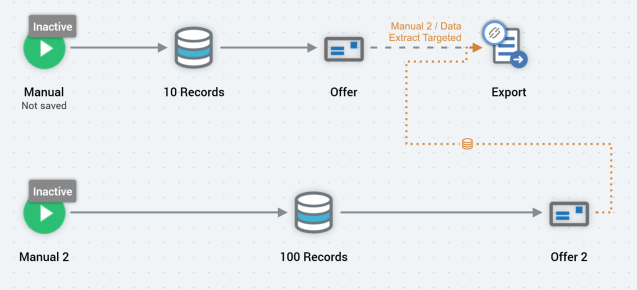
Where an activity takes its input source from an activity in a different workflow, and that source workflow has not yet produced any results, the activity enters a Paused state. Playing the activity before the source workflow has run leaves it Paused; it proceeds once results exist in the source workflow.
A Batch Audience that takes its population from an input source does not additionally need to be configured with an audience.
Not every activity in your workflow shows up in the Input source dropdown. It excludes:
-
This activity's own immediate upstream activity. Selecting it would be identical to the default, so it isn't offered.
-
Activities that don't produce offer history, such as a Data Transfer, or an Export activity that has Write offer history turned off. There'd be nothing for the downstream activity to read.
-
Audience activities from a different, already-completed workflow. Their working data isn't retained once that workflow finishes.
-
Input source is only available on activities that are downstream from a fulfillment activity (for example, an Offer, Export, Data Transfer, or Data Process), not on an activity placed directly downstream of a Batch Audience or Interactive Activity. If an activity sits right after an audience, the Input source field won't appear on its Inputs tab at all.
-
An activity positioned immediately downstream of a trigger that has an Input Workflow configured takes its input from that workflow; its input source cannot be changed.
Split
Splitting a workflow into multiple parallel paths isn't new in v7.8. An activity has always been able to fan out to more than one downstream activity. What's new is the ability to bring those paths back together, described next.
Rejoin
Rejoin lets an activity accept input from more than one upstream source at once: its normal (primary) input, plus any number of additional input sources you add on the Inputs tab.
Rejoin (multiple input sources) is available only on Interactive Activities. If you add an additional input source to any other activity type, Interaction Designer flags the configuration as invalid.
A few behaviors to understand before you build a rejoin:
-
The merge is a union, not a wait-for-all.
A contact reaches the rejoin activity as soon as it qualifies through any one of the connected sources. Interaction Designer doesn't wait for a contact to complete every path first. If one path runs faster than another, contacts from the faster path arrive at the rejoin activity right away. -
Contacts aren't duplicated.
If the same contact qualifies through more than one connected source, it's only processed once at the rejoin activity. -
Input source types must match.
You can't mix an audience-type primary input with a fulfillment-type additional source coming from a genuinely parallel branch. Interaction Designer blocks this with a message asking you to keep input source types consistent. -
A Delay activity in a different workflow can't be used as an additional source.
Reference the activity that feeds that Delay instead, or use a Delay in the same workflow. A Delay in the same workflow can be used as an additional input source. It is listed against the fulfillment activity that precedes it, shown as “activity name after hh:mm:ss”. A Delay serving as an additional input source cannot itself be fired. A Delay in a different workflow cannot be selected as an additional input source; reference the activity that feeds that Delay instead.
We recommend running your split-and-rejoin scenario end to end in test mode before relying on it in production, particularly when the sources you're merging are of different types. The underlying targeting logic is easiest to confirm by watching contacts move through it rather than by reviewing the configuration alone.
Loop-back and reprocessing
In a loop-back, the source activity actually sits later in the workflow than the activity it feeds. It's still a rejoin source; it just points backward on the canvas instead of forward. Interaction Designer detects the direction automatically and applies loop-specific validation.
To let a contact be reprocessed, set the following on the target Interactive Activity's Inputs tab, under Additional Input Sources:
-
Target contacts more than once.
Off by default. With this off, an activity only ever targets a given contact once, so turning it on is what allows re-entry at all. If you configure a loop-back without enabling this, Interaction Designer flags the configuration and prompts you to turn it on. -
Re-evaluate audience on re-entry.
Shown once Target contacts more than once is checked and the activity is configured with an audience. When checked (the default), a re-entering contact only advances once it qualifies through the audience again; a contact the audience suppresses is held at its current iteration and re-enters once it qualifies, so its progress is delayed rather than cancelled. When unchecked, re-entering contacts advance automatically to downstream fulfillment activities without re-running the audience. -
Maximum iterations per Contact.
Caps the maximum number of times a contact can be reprocessed. Leave this setting blank for unlimited iterations; the default is 2.
Controlling how long a loop runs
There's no single "maximum number of loops" setting for the whole workflow. Two things together determine how long a loop continues:
-
The iteration cap you set in Maximum iterations per Contact (if any).
-
The looping Interactive Activity's own recurrence schedule. Because loop reprocessing runs on that activity's normal recurrence window, the loop stops once the activity's scheduled recurrence ends. If you need a hard stop, set the Interactive Activity's own duration or end date rather than relying on the iteration cap alone.
Checking how a loop is running
The Interactive Activity’s Results window reports each pass separately. An Iteration n column is shown for each time a record has been targeted, giving a live count of the records currently within that iteration of execution. A Total Passes value is shown to the right of Count in the footer: this is the total number of passes through the activity, with each record counted once per iteration it has reached, and it reconciles with the totals reported by downstream offers.
Supported activity types
The Input source field is available on the following activity types:
|
Activity type |
Input source |
Additional input sources (rejoin) |
|---|---|---|
|
Batch Audience |
Yes |
No |
|
Interactive Activity |
Yes |
Yes |
|
Data Process |
Yes |
No |
|
Data Transfer |
Yes |
No |
|
Control |
Yes |
No |
|
Export |
Yes |
No |
|
Offer |
Yes |
No |
|
Decision Offer |
Yes |
No |
Input source is only available on activities downstream from a fulfillment activity (see the restriction above). It does not appear on an activity placed directly downstream of a Batch Audience or Interactive Activity, regardless of type.
Configure split and rejoin
-
Double-click the activity you want to rejoin into (or select Show configuration panel from its mini toolbar) to open its configuration panel.
-
Go to the Inputs tab.
-
Under Additional Input Sources, select the green plus sign to open the Add Input Source dialog.
-
Choose the Workflow and Activity you want to add as a source, then select Add.
-
In the Edit Input Source dialog, choose one or more output states from the tree view, then select OK.
-
Repeat steps 3–5 for each additional source you want to add. Use the pencil icon next to a listed source to edit it, or the red minus sign to remove it.
-
If you're configuring a loop-back or want contacts to be reprocessed, select Target contacts more than once and set Re-evaluate audience on re-entry and Maximum iterations per Contact as needed.
If you add one or more additional input sources that feed back into an Interactive Activity from later in the workflow, and Target contacts more than once isn't checked, Interaction Designer displays a warning that already-processed contacts won't be re-targeted until you enable it.
Caveats and things to watch for
-
An input source replaces; it doesn't narrow.
Pointing an activity at a different source fully replaces its upstream input; the original connection becomes execution-sequence-only (shown as a dotted grey line). Any filtering you see afterward comes from the activity's own standard targeting criteria, not from combining old and new sources. Refer to the note under Input source. -
Input source is only available downstream from a fulfillment activity.
It doesn't appear on an activity positioned directly after a Batch Audience or Interactive Activity. -
Rejoin only exists on Interactive Activities.
If you're planning a split-and-rejoin design, the activity where the paths come back together must be an Interactive Activity. -
Rejoin waits for none of the paths, not all of them.
If your design depends on a contact having completed every branch before moving on, rejoin isn't the right tool for that step. -
Source types must match when rejoining parallel branches.
Mixing an audience-based source with a fulfillment-based source from a separate parallel branch isn't supported. -
Metadata sub-filtering is available only on the primary input.
The finer-grained metadata filtering available on an activity's primary input isn't yet available on additional (rejoin) input sources. -
Loop-backs require an explicit opt-in.
Forgetting to enable Target contacts more than once is the most common reason a loop-back doesn't behave as expected. Interaction Designer will flag it, but it's worth confirming before you run a workflow in production. -
Test results don’t carry into a production run.
Where an activity draws its input source from a different workflow, results produced by a test run of the source workflow cannot be used by a production execution of the consuming workflow.
Due to the freedom that this functionality can give you when building Interactions, please exercise caution and ensure tests are executed before promoting to production runs.
Additional resources