

Overview
The Production page is where you run and monitor Redpoint Identity Studio (RIS) production jobs. It has three tabs: Summary, Results, and Logs.
The video below walks through each tab on the production page and how to run a Production job.
Summary tab
The Summary tab shows the current job state and key metrics.
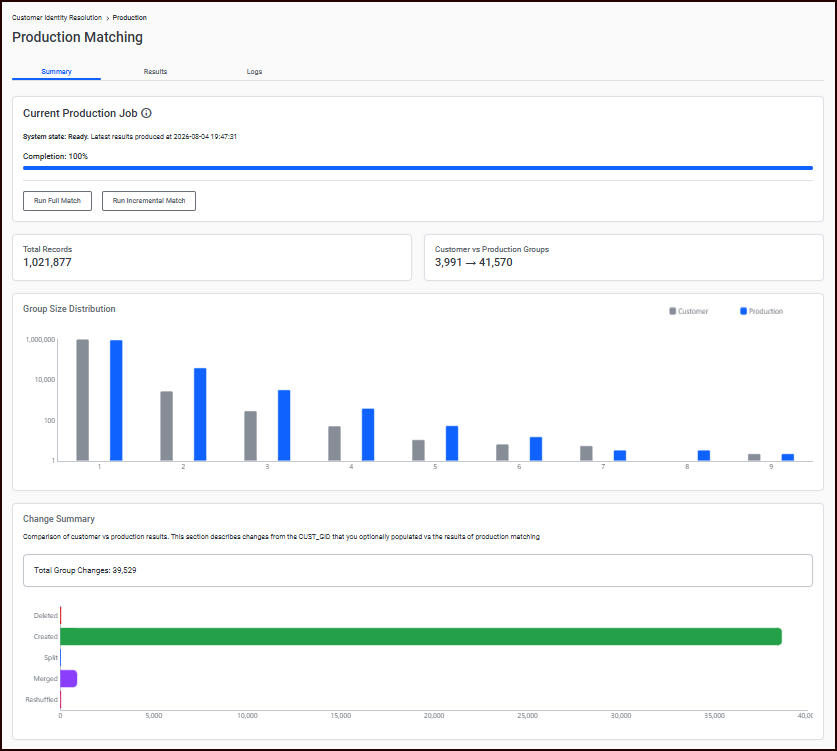
The Current Production Job section contains the following:
-
System State: the current processing phase.
-
Completion: a progress bar showing completion percentage, with the start time displayed below.
-
Run Full Match: start a match job processing all records from scratch. Use this for initial runs, after promoting an experiment, or when major configuration changes have been made.
-
Run Incremental Match: start a match job processing only new or changed records since the last run. This is significantly faster than a full match when < 0.1% of records have changed.
-
When you run a match (whether Full or Incremental), the hygiene phase of the match will collect addresses only and send them to the Hygiene service for standardization. If you do not populate the
COUNTRYcolumn(s) of yourINPUTtable, it will assumeUSA. -
You can consult the Logs tab as the match job runs to view its progress.
An Abort button is available to cancel a running job.
Only one job can run at a time. The run buttons are disabled while a job is in progress.
-
Metrics Cards (displayed after a job completes):
|
Metric |
Description |
|---|---|
|
Total Records |
Number of records processed. |
|
Customer vs. Production Groups |
Customer group count compared to production group count The “Customer” group means that you loaded the |
|
Items Reviewed |
Number of review items completed. |
|
Net Change |
Difference in group count (positive shown in green, negative in red). |
-
Group Size Distribution: A chart comparing group size distribution between the customer and production results. Clicking a bar in this chart automatically applies a filter to the Results tab, showing only groups of that size.
-
Change Summary: A chart showing the count of groups created, deleted, split, merged, and reshuffled. Clicking a category label (e.g., "Created", "Split") applies the corresponding filter to the Results tab, providing a quick way to drill from the visual overview directly into affected records.
Results tab
The Results tab lets you browse individual match groups and their records.
-
Filter: Click the Filter button to open filter options:
-
Enable Filter checkbox activates filtering
-
Filter Type dropdown: All, Any Change, Created, Deleted, Split, Merged, Shuffled
-
Min Group Size dropdown: 1-300
-
-
Refresh: Reloads the current view
-
View: Click the View drop-down menu and select one of the following options:
-
Show Standardized: Displays the addresses that have been standardized through the hygiene process.
-
Show Original: Displays the addresses as they appear in the original input table.
-
Show Components: Displays the standardized addresses broken down into more granular pieces (e.g., address number separated from street name).
-
-
Navigation: Use Next and Previous buttons to step through sample match groups
-
Group tables: Two tables display:
-
Baseline Groups: Records as they existed before the current match
-
Production Groups: Records as matched by the current production run
-
Each table has a Show Expanded View checkbox to toggle between compact (one row per record) and expanded (three rows per record showing alternate values) views.
-
Add Suppression: Stage a suppression for selected records. Opens a dialog showing candidate suppression values to choose from.
-
Search by PII: Open a search dialog to find records by name, address, phone, email, or social fields. Results can be selected and loaded into the viewer.
-
Manual Overrides: Navigate to the Manual Overrides workspace with the current group pre-loaded. A "Back to Production" link is provided to return to the Results tab after saving overrides.
Logs tab
The Logs tab displays detailed progress messages with timestamps, organized by job phase. The Logs are primarily for internal use and troubleshooting.
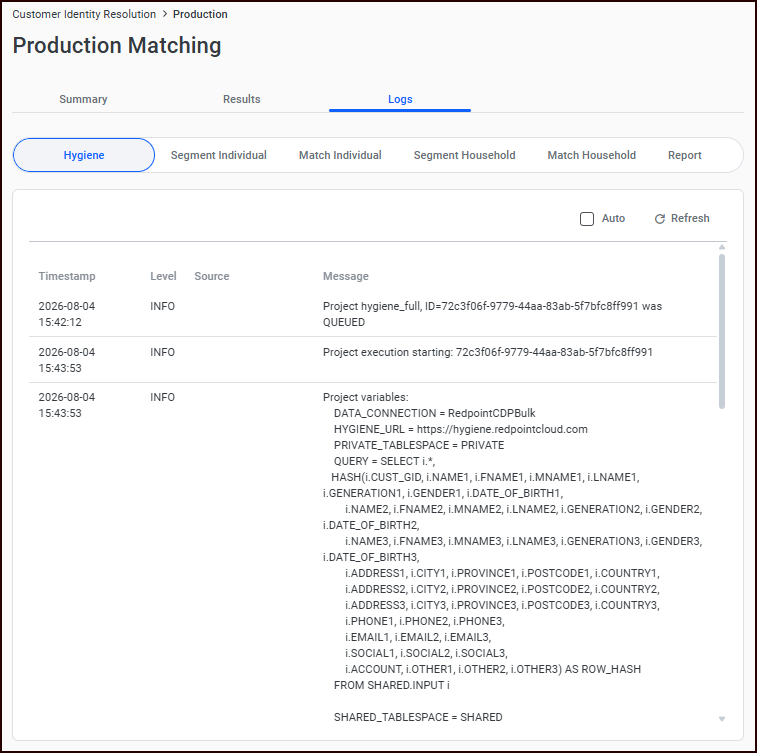
Six phase tabs are available:
|
Phase |
Description |
|---|---|
|
Hygiene |
Data standardization and cleansing |
|
Segment Individual |
Building individual-level segments |
|
Match Individual |
Comparing individual records |
|
Segment Household |
Building household-level segments |
|
Match Household |
Comparing household records |
|
Report |
Generating comparison reports |
Each phase tab shows a searchable, paginated message table with columns for Timestamp, Level (INFO/WARNING/ERROR), Source, and Message.
Controls:
-
Auto checkbox: Enable automatic polling for new messages while a job runs
-
Refresh button: Manually reload messages