

Overview
A suppression is a rule that prevents specific records from being matched together during identity resolution. When two records share a data value — like a phone number, email address, or name — the matching engine may link them into the same identity group. A suppression tells the engine to ignore that shared value, effectively "suppressing" the match.
Example: A call center phone number appears on thousands of records. Without a suppression, the matching engine might link all of those records into a single massive identity group. By suppressing that phone number, you instruct the engine to disregard it as a matching criterion, allowing those records to be matched (or not) based on their other attributes.
Suppression types
Suppressions are categorized by the type of data being suppressed:
|
Type |
Description |
Example |
|---|---|---|
|
First/Last Name |
A specific name combination |
"John Smith" |
|
Phone |
A phone number |
"555-0100" |
|
|
An email address |
"noreply@example.com" |
|
Social |
A social media identifier or handle |
"@JaneSmith" |
|
Account |
An account number |
"ACCT-000001" |
|
Address (Street) |
Street number, street name, and unit |
"123 Main St Apt 4" |
|
Address (Full) |
Street address with postal code |
"123 Main St Apt 4 90210" |
|
Other |
Any other data value |
Varies |
How suppressions work
Suppressions follow a deliberate, three-step workflow to ensure changes are reviewed before they affect production data. A suppression does not take effect immediately when you create it.
Step 1: Stage a suppression
When you identify a problematic data value in your match results, you stage it as a suppression. Staging saves the suppression to a holding area; think of it as a draft or a to-do list. Staged suppressions have no effect on your production match results.
Where you can stage suppressions:
-
Production Match > Results Detail: While reviewing production match results, open the actions menu (three-dot icon) and select Add Suppression.
-
Experiment > Review tab: While reviewing experiment results, open the actions menu and select Add Suppression.
-
Match Review > Manual Review: While performing manual review, click the Add Suppression button in the footer controls.
The Add Suppression dialog:
-
When you select Add Suppression, the system analyzes the current records and presents a list of suppression candidates: data values shared across the records that could be causing them to match.
-
Each candidate shows its type (e.g., Phone, Email) and value (the actual data).
-
Select one candidate by clicking its row.
-
Click OK to stage the suppression.
After staging, a confirmation dialog appears:
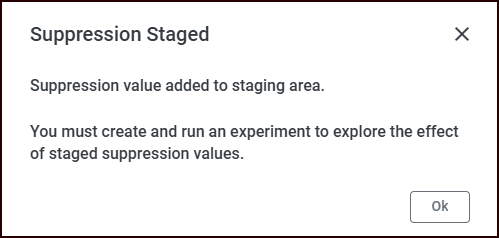
You can stage multiple suppressions over time. Each one is added to the staging area independently.
Step 2: Create and run a suppression experiment
Staged suppressions sit in the staging area until you are ready to test their effect. To do this, you create a Suppression Experiment.
Step 3: Review and promote
After the experiment completes:
-
Switch to the Review tab to compare the experiment's results against your current production baseline.
-
For each match group set, you can see how the suppressions changed the groupings; records that were previously linked may now be separated.
-
If the results look correct, Accept the experiment to promote the suppression rules into production. The next production match job will incorporate the accepted suppressions.
Once an experiment is accepted and promoted, its suppressions become part of the active matching rules. You cannot undo a suppression that has been promoted to production.
-
If the results are not what you expected, Reject the experiment. The suppressions remain staged, and you can adjust your approach.
Refer to Reviewing experiment matches for more information about the match review process.
Suppression states
Each suppression item has a state that tracks its lifecycle:
|
State |
Meaning |
|---|---|
|
New |
Recently staged; has not been included in an accepted experiment yet. |
|
Accepted |
Was included in an experiment that was accepted and promoted to production. |
|
Rejected |
Was included in an experiment that was rejected. Remains in staging for future consideration. |
Finding records to suppress
You do not need to know in advance which records need suppression. The typical workflow is:
-
Browse match results: Navigate to Production Match > Results Detail. The system shows you match group sets one at a time for review.
-
Search by PII (optional): If you are looking for a specific record, use the Search by PII option in the actions menu. You can search by name, address, phone, email, or other fields. Select the records you want to inspect, and they will load into the Results Detail view.
-
Identify a problematic match: When you see records that should not be grouped together, determine what shared value is causing the incorrect match.
-
Add Suppression: Use the Add Suppression action to stage a suppression for that value.
Both the browse-and-discover approach and the targeted PII search approach lead to the same Add Suppression dialog. The Search by PII feature is a convenience for drilling into specific records; it is not a prerequisite for adding suppressions.
FAQ
Q: Can I suppress multiple values at once?
A: The Add Suppression dialog allows you to stage one suppression at a time. However, you can repeat the process as many times as needed — each staged suppression accumulates in the staging area. When you create a Suppressions experiment, you can include multiple staged items together.
Q: Do staged suppressions affect production immediately?
A: No. Staged suppressions have no effect until you create an experiment with them, run it, review it, and accept it. This safeguard ensures you always preview the impact before it reaches production.
Q: What happens if I reject a suppression experiment?
A: The staged items remain in the staging area. You can create a new experiment with different selections, adjust your approach, or ignore items you no longer want.
Q: Can I undo a suppression that has been promoted to production?
A: Once an experiment is accepted and promoted, its suppressions become part of the active matching rules. You cannot undo a suppression that has been promoted to production.
Q: What is the difference between a Manual experiment and a Suppressions experiment?
A: A Manual experiment lets you modify matching rules (thresholds, field weights, etc.) and re-run the engine to see the impact. A Suppressions experiment specifically tests the effect of excluding certain data values from the matching process. Both follow the same create-run-review-promote workflow.
Q: Where can I see all my currently staged suppressions?
A: When you create a new Suppressions experiment, the configuration screen displays all items currently in the staging area along with their type, value, state, and record count.