

Overview
This topic walks through how to get to the Audience Builder as well as a high-level overview of how to use it to build audiences.
Launch the Audience Builder
-
On the left side menu, go to Smart Activation > Audience.
-
Click the Audience Builder (Beta) button.
You can start to build your audience. The next section details the interface elements.
About the Audience Builder UI
-
The top panel provides high-level information about your audience. This is where you can name and save your audience, see if it’s valid, refresh counts, as well as view/modify audience properties and metadata.

-
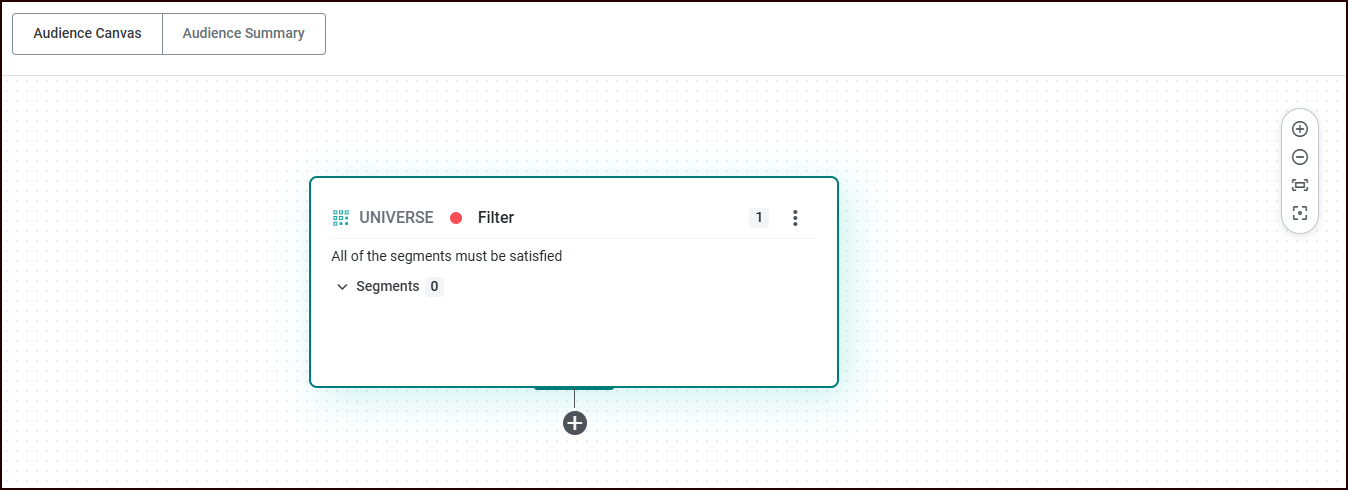
The Audience Canvas provides the visual overview of your audience as you build it. This is where you can add nodes by clicking the plus button under an existing node, drag-and-drop nodes to reorder them, and zoom in and out to view your audience at a higher or lower level.
-
The Audience Summary provides information about your audience as you build it, including information about each of your nodes and the corresponding counts.
-
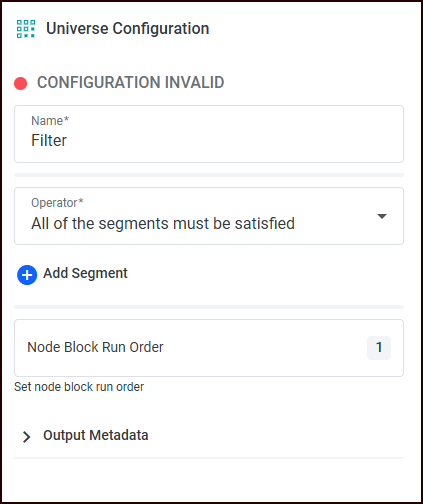
The Configuration panel is where you configure the selected audience node, including naming the node, as well as the following:
-
The Operator menu allows you to choose from All of the segments must be satisfied or Any of the segments must be satisfied (which means that at least one must be satisfied).
-
Click Add Segment to navigate to and select one or more segments to add. Once the segment has been added, you can click the vertical ellipsis menu on the right side of the segment to Change Segment or Remove Segment.
-
Node Block Run Order is the order in which a block's child blocks will be executed (this is the order in which a node's child blocks will be executed when compared to its siblings).
-
Output Metadata allows you to configure metadata.
-
Options allows you to set the Cap Type and Cap Value for splits.
-
Before you can run counts on your audience, you must save it first; before you can save your audience, you must name it.
Let’s build an audience using the Audience Builder.