Overview
The RPI v7.7 Helm chart has been enhanced so you never need to fork or edit the Helm chart. All customization is done through your overrides file, which is typically 50-100 lines. Chart updates apply automatically without reconciling template changes.
If you’re upgrading from RPI v7.6, there are some additional considerations. Refer to Upgrading to RPI v7.7 for details.
Initial deployment process
If you’re deploying RPI v7.7 for the first time, you’ll need to generate an overrides.yaml file:
-
Generate your overrides file using the RPI Helm Assistant’s Generate tab wizard.
You can optionally use the Reference tab to browse available configuration options, or the Chat tab to ask questions about specific features as you walk through the wizard. -
When you’re done, click overrides.yaml in the Downloads section on the left.
-
When upgrading between chart versions (e.g., for a post-release update), see the Migration readme for details on key changes, new features, and any breaking changes.
-
If you’ve already deployed RPI v7.7 and are making incremental changes, follow the procedure below instead of using the Generate tab wizard.
Why you don't need to fork
-
Internal defaults (probes, security contexts, logging, ports, rollout strategies) are chart-managed
-
All enterprise features (annotations, CSI secrets, image overrides, CA certs, Karpenter, service mesh) are configurable through values
-
New chart defaults apply automatically on upgrade without any action on your part
-
The Reference tab shows every configurable key so you know exactly what you can override
When a new RPI version is released, update the global.deployment.images.tag in your overrides and redeploy. To see the full list of images:
helm template rpi ./chart -f overrides.yaml | grep "image:" | sort -u
Custom requirements
If your deployment has specific requirements that cannot be achieved through the overrides file (e.g., organizational policies, compliance constraints, or unique infrastructure patterns), contact support@redpointglobal.com with your use case. We incorporate customer requirements as native chart features so you never need to maintain forked templates. All enterprise features in v7.7 (custom annotations, CSI secrets, image overrides, CA certificates, Karpenter, service mesh, smoke tests) were built this way.
Post-deployment update process
The Helm Assistant does not remember your previous overrides (security best practice). The Generate tab's state lives in your browser's session and disappears when you close the tab — there's no server-side "save”. So, for incremental changes to an already deployed environment, don't re-run the Generate tab. Keep your existing overrides.yaml as the source of truth (in git) and edit it directly to add what you need.
So, in summary:
-
On first deploy: go to the Generate tab to walk through the wizard and download your initial overrides file.
-
If you’ve already deployed and want to add a feature: find the settings you want to add and directly edit your overrides file.
-
Go to the Reference tab, which shows every configurable key in the chart plus the per-service overridable defaults, all rendered with their default values.
-
Search for/find the keys that correlate to the feature you want to add or update. For example, in the Reference tab, search for "queuereader", and you'll see the full block:
YAMLqueuereader: enabled: true replicas: 1 ... # === Per-service overridable defaults (from _defaults.tpl) === # podAnnotations: {} # threadPoolSize: 10 # timeoutMinutes: 60 # maxBatchSize: 50 # useMessageLocks: true # partitionHandler: # partitionLockDuration: "00:02:00" # ...The
#commented lines are the chart's defaults. Copy the keys you need and paste them into your existingoverrides.yaml. -
Uncomment or update the values as needed.
-
Perform a Helm upgrade.
-
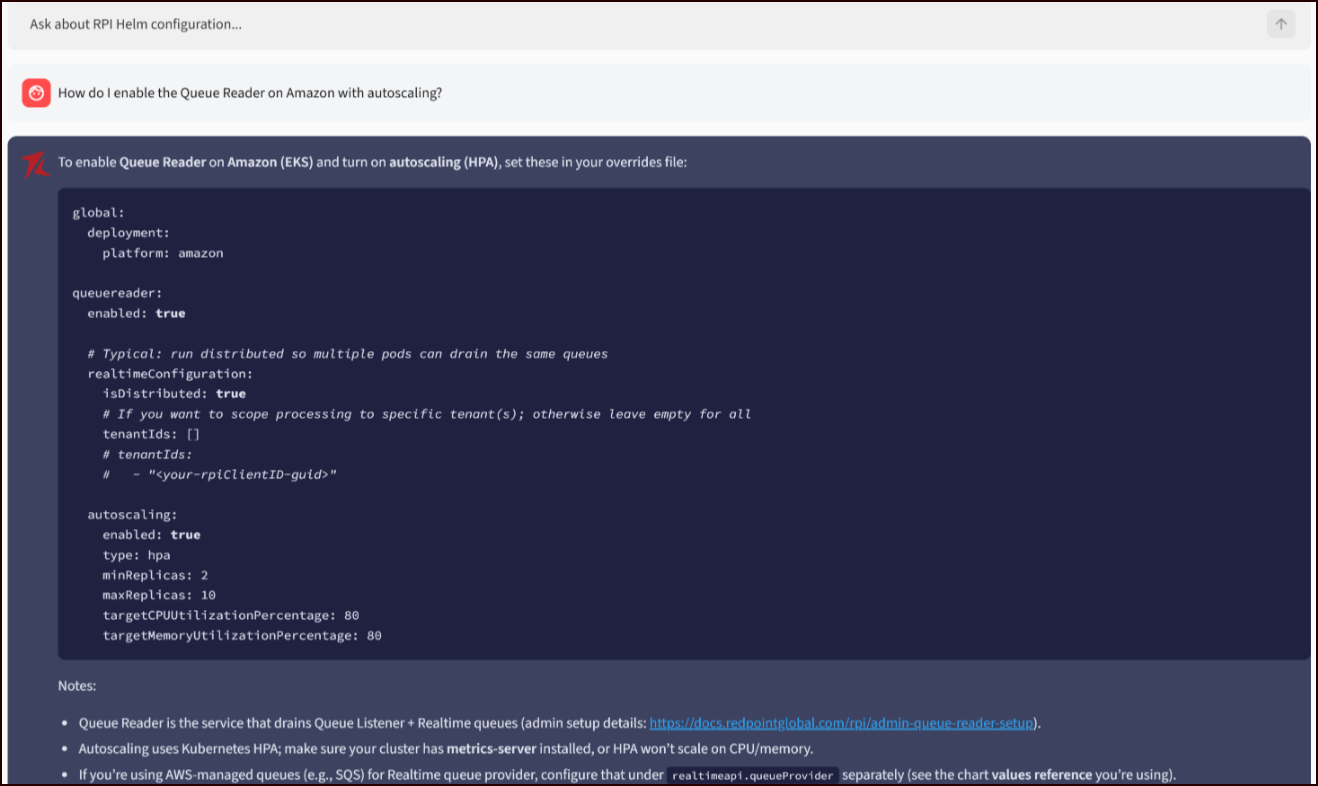
Optionally use the Chat tab
The Chat tab is a complementary tool that provides a natural-language helper. Type what you want to do into the chat. For example, "How do I enable the Queue Reader on Amazon with autoscaling?" returns a snippet ready to paste with explanations.