

Redpoint AI uses Artificial Intelligence (AI) to create criteria within a basic selection rule. To use Redpoint AI, select the Redpoint AI button in the basic selection rule’s toolbox’s Tools tab.
This feature requires the initial configuration described in Admin: Basic selection rule AI integration.
The option is only available if one or more SQL database definitions at which Enable AI has been checked exist, and the current user is a member of a user group with the Selection Rule—Basic—AI functional permission.
The video below takes a closer look at how Gen AI is used within the RPI environment for segmentation as well as content generation.
Selecting the button displays the Redpoint AI overlay, which is displayed on top of the rule's workspace.
The overlay contains the following:
-
Close: an “X” close button, shown to the top right, allows you remove the overlay from display.
-
Chat history: when displayed for the first time, an introductory prompt is written by Redpoint AI:

A date and time is displayed along with each entry in the chat history. If Redpoint AI has been used previously to build criteria within the current basic selection rule in the current RPI session, the previous chat history is shown.
Chat history is updated as user prompts and responses from Redpoint AI are entered and received respectively.
-
Clear chat: this button is available when at least one user prompt has been added to the chat history. Selecting it clears all entries in the chat history and redisplays the initial Redpoint AI prompt.
-
User prompt: you can enter instructions to Redpoint AI describing the type of criteria you wish to create. Once you enter text in this field, the Send message to Redpoint AI button is available.
-
Send message to Redpoint AI: this button is available when text has been entered in the user prompt.. Selecting it adds the user prompt to the chat:

Redpoint AI then displays a 'Thinking...' message. While this is displayed, a Send Message to Model job is created (the My Jobs Window is not displayed). More information on the job can be found in the My Jobs documentation.
Redpoint AI’s response is displayed on the job’s completion:
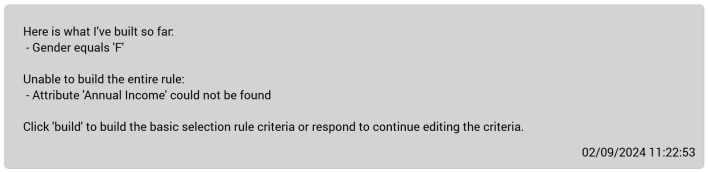
If Redpoint AI is unable to build one or more criteria, a message describes why this is the case. A message appears at the bottom of the response advising you to select Build to build the criteria listed; alternatively, you can enter further user prompts to add more, or edit or remove existing, criteria.
-
Build latest criteria: this button is available when criteria listed in the chat. Selecting it removes the Redpoint AI overlay from display, and displays the generated criteria in the basic selection rule. An “Are You Sure?” dialog is displayed if criteria already present in the rule.
It’s important to check that the criteria generated using Redpoint AI are as per your expectations.