

This section describes how to configure Snowflake connection for a specific Redpoint Interaction tenant running within a container application. Please follow the steps below:
-
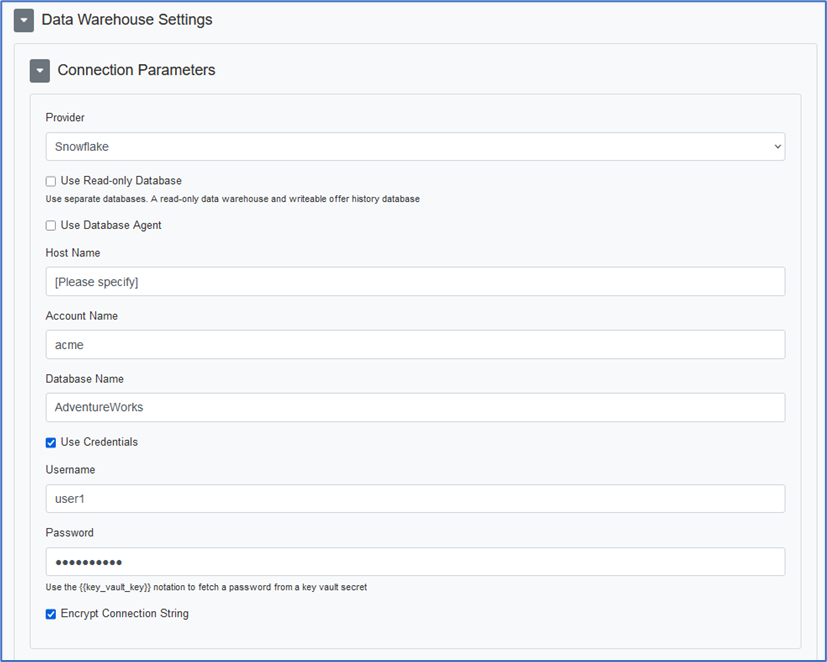
In the Configuration Editor’s Data Warehouse Settings section, select the Snowflake provider.
-
Enter the required parameters such as Server, Database Name, Username, and Password. You will need to provide a value for the Host Name parameter if Snowflake is configured in a cluster other than the default.
-
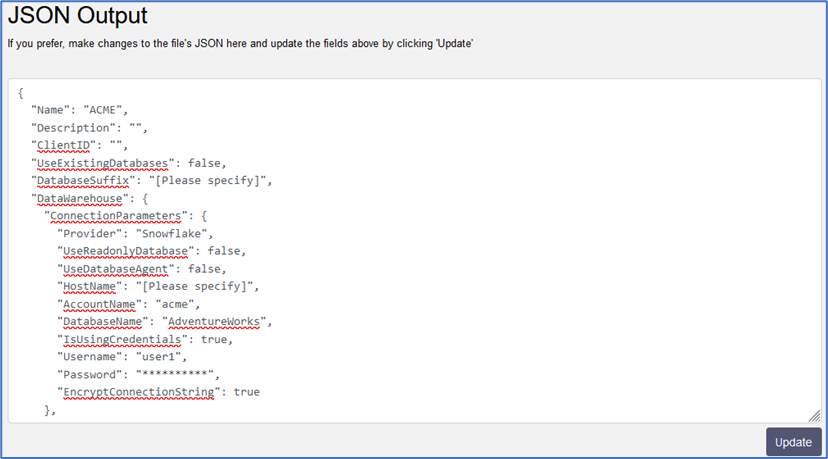
Copy the JSON text template to provision the new tenant.
-
Once the tenant has been provisioned, a sample connection string is generated.
account=acme;user=user1;password=*****db=AdventureWorks
-
For more information about Snowflake connection string parameters, please refer to https://github.com/snowflakedb/snowflake-connector-net/blob/master/doc/Client/Connecting.md.