

Support for this connector has been deprecated and will be removed in a future release. Refer to the Connector deprecation plan for details.
This section describes how to configure an Azure Database for PostgreSQL connection for a specific Redpoint Interaction tenant running within a container application. Please follow the steps below:
-
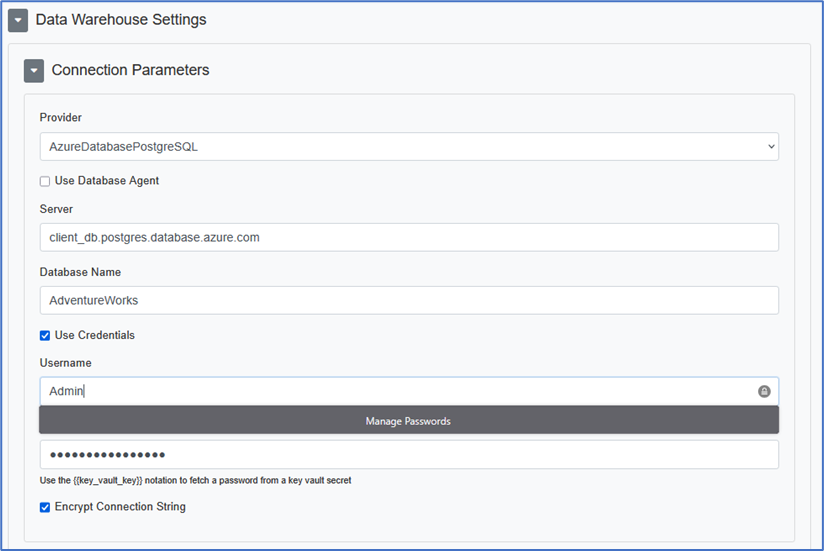
In the Configuration Editor’s Data Warehouse Settings section, select the AzureDatabasePostgreSQL provider.
-
Enter the required parameters such as Server, Database Name, Username, and Password.
-
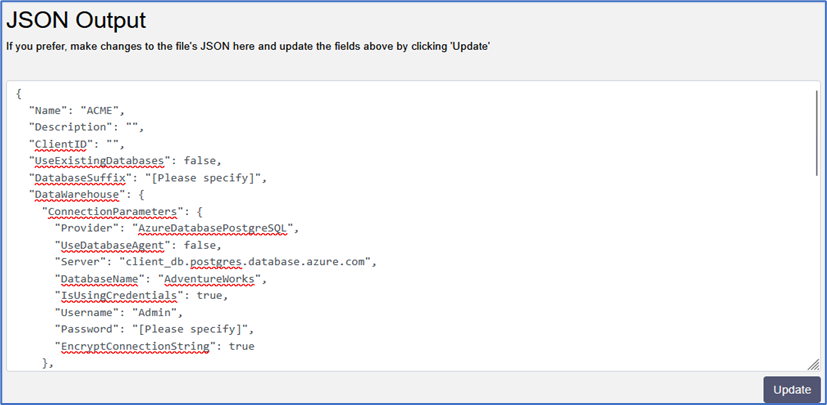
Copy the JSON text template to provision the new tenant.
-
Once the tenant has been provisioned, a sample connection string is generated.
Server=client_db.postgres.database.azure.com;Database=AdventureWorks;
Port=5432;User Id=postgres;Password=*****;SslMode=Disable
-
For more information about Azure Database for PostgreSQL connection string parameters, please see https://learn.microsoft.com/en-us/azure/postgresql/flexible-server/connect-csharp and https://www.npgsql.org/doc/connection-string-parameters.html.