This section describes how to create and configure an AWS Redshift Data Source Name (DSN). Please follow the steps below. Please note that you may skip steps from 1–4 if you have already installed the ODBC driver.
-
In a web browser, navigate to https://docs.aws.amazon.com/redshift/latest/mgmt/install-odbc-driver-windows.html to download the driver.
-
Locate https://s3.amazonaws.com/redshift-downloads/drivers/odbc/1.5.9.1011/AmazonRedshiftODBC64-1.5.9.1011.msi to download the 64bit Amazon Redshift ODBC installer.
-
In the download folder, double-click the
AmazonRedshiftODBC64-1.5.9.1011.msifile. -
In the Amazon Redshift ODBC Driver 64-bit Setup Window, select Next and follow the required steps to install the driver.
-
Once you have successfully installed the ODBC driver, go to Control Panel\All Control Panel Items\Administrative Tools and select Data Sources (ODBC).
-
In the ODBC Data Source Administrator Window, select the System DSN tab.
-
Choose the Add... button to create a new Data Source.
-
Find and select Amazon Redshift (x64) and select Finish.
-
In the Amazon Redshift ODBC Driver DSN Setup Window, configure the following details:
-
Data Source Name: the name of the data source.
-
Server: the Amazon Redshift cluster endpoint URL, i.e.,
"xxx.xxx.endpointregion.redshift.amazonaws.com". -
Port: the cluster port number. Only numerical values are supported. The default is
5439. -
Database: the database’s name.
-
Auth Type: must be set to
"Standard". -
User: the database username.
-
Password: the database password.
-
Encrypt Password For: must be set to
"All Users of This Machine". -
Additional Options: change the radio button selection to Use
"Multiple Statements".
-
-
Select the Test button. Once the connection has been made successfully, choose the OK button to create the DSN.
-
Once completed, launch Server Workbench and login.
-
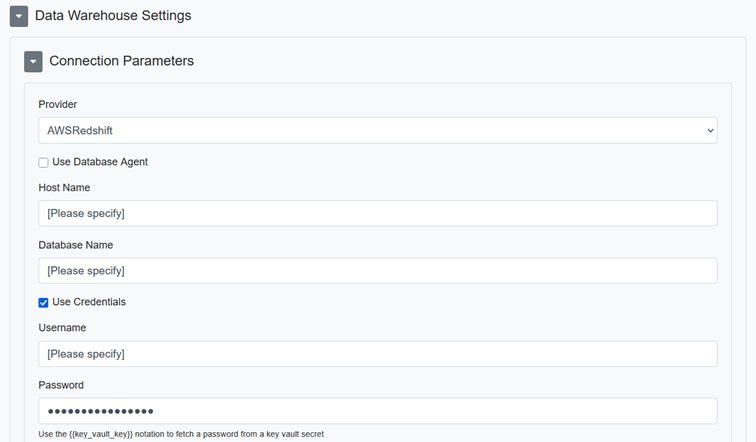
In the Install Client at Data warehouse pane, select AWS Redshift as the database provider.
-
Enter the Server name. This can be either the DNS (Domain Name System) or an IP address of the server.
-
Enter the Database provider.
-
Enter the Data Source Name.
-
Enter the Database schema.
-
-
Check the End User License Agreement checkbox and then select Next.