

Create New Execution Window
This is carried out in the toolbar. A submenu is shown on clicking the Create new… button:
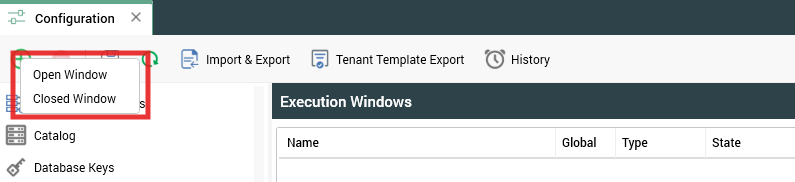
On selection of an option, a new execution window of the selected type is added to the grid. Its Name is “New Window” (this value can be incremented to ensure uniqueness).
Configure Existing Execution Window
This is carried out in the Selected Execution Window Details section. If you configure an execution window that has been saved previously, its state is set to “Edited”.
Delete Selected Execution Window
This is carried out in the toolbar. A deleted execution window's state is set to Deleted. Its row text color is set to red. You may no longer select a deleted row.
Save Changes to Execution Windows
Save is carried out using the Save changes to Execution Windows toolbar button. Any changes you have made are validated, and any validation errors are advised in a dialog. You may not proceed with the Save until you have resolved them.
Following a successful save, execution windows are displayed in alphabetical order. All windows' states are updated to Unchanged. Any deleted windows are removed from display.
Refresh
This option reloads the contents of the interface from the operational database. If changes have been made, a “Save Changes?” dialog is shown.
Additional resources