

This section describes how to configure CosmosDB. Please follow the steps below:
-
In a web browser, log into https://portal.azure.com.
-
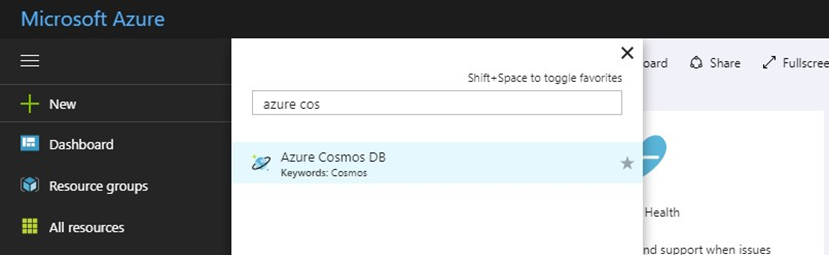
Once you have successfully logged into the portal, click More services at the menu navigation to search for the Azure Cosmos DB resource.
-
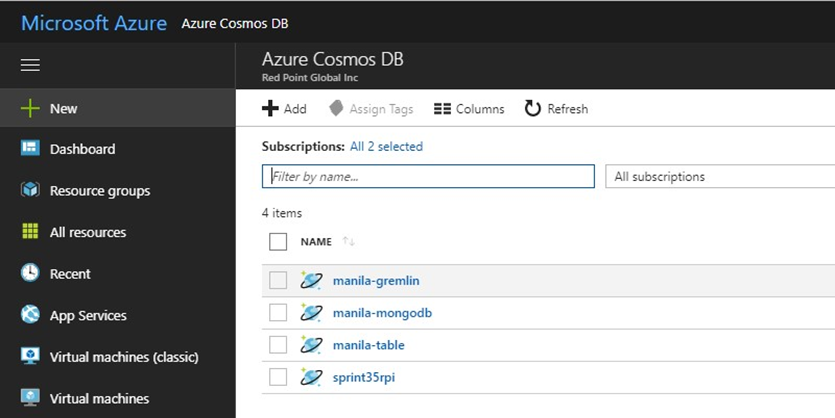
Click the CosmosDB resource, (in this example “sprint35rpi”).
-
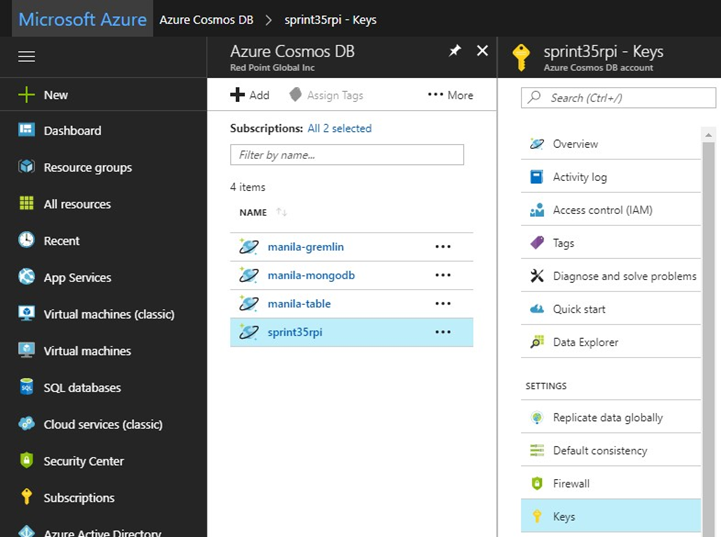
Under Settings, click Keys.
-
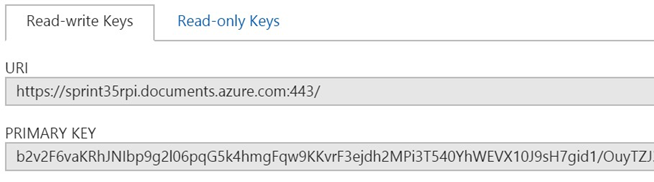
Use the URI to configure the Azure Cosmos DB ODBC Host parameter and PRIMARY KEY as the Access key.
-
Download and install the ODBC driver from https://aka.ms/documentdb-odbc-64x64.
-
Use “default” as the default value when configuring the Azure Cosmos DB schema in the Server Workbench Manage Auxiliary Databases interface.