

Overview
This document walks through how to recover from a failed Interactive Activity (IA) execution with the error “Primary cache data loss detected. Configuration is set to fail on data loss” using the LuxSci plugin.
Scenario 1: Recovering an IA with no batches of emails sent yet
The following steps assume that the error is caused by the cache expiration while the IA waits for the next trigger coming from a successful workflow execution. This scenario can be resolved without creating an additional workflow.
-
Download and install Redis Insight at https://redis.io/downloads/#Redis_Insight.
-
Retrieve the cache values in the
rpi_FailoverCachetable using the query below:
SELECT [Key]
      ,[Value]
      ,[ExpiresAt]
FROM [Pulse].[dbo].[rpi_FailoverCache]
Where [Key] like 'LuxSci_%' AND [Key] like '%[ClientID]_[ChannelExecutionID]'
Sample result:
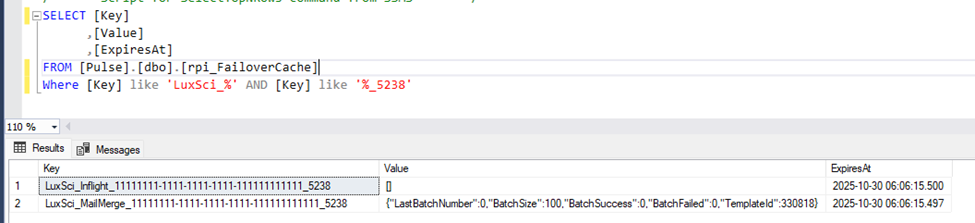
ClientID value can found in the rpi_Clients table.
ChannelExecutionID can be found in the ops db using query below:
SELECT [WorkflowID]
      ,[ChannelExecutionID]
  FROM [OFFERHISTORY_TABLE]
  where WorkflowID = [WORKFLOW_ID]
WORKFLOW_ID value can be found in the Interaction results window.
-
Open Redis Insight and connect to the Redis server.
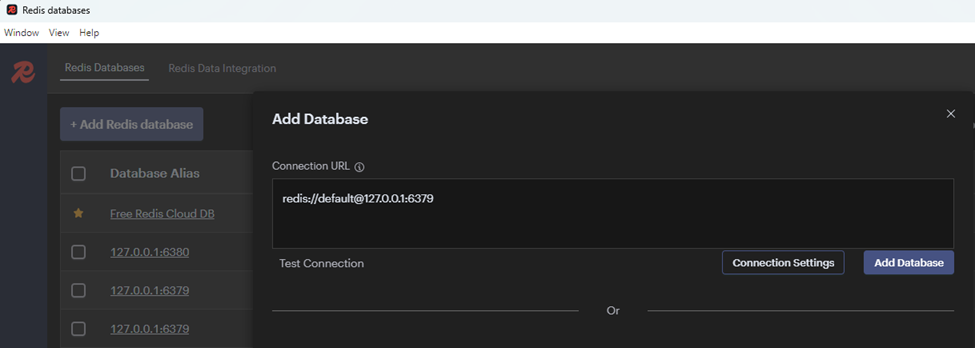
-
Add the keys below with type
String. TheBatchSizevalue can be taken from the result in step 2.
Key: LuxSci_Inflight_[ClientID]_[ChannelExecutionID]
Key type: String
TTL: 31536000
Value: “[]”Key: LuxSci_MailMerge_[ClientID]_[ChannelExecutionID]
Key type: String
TTL: 31536000
Value: “{\"LastBatchNumber\":0,\"BatchSize\":[BatchSize],\"BatchSuccess\":0,\"BatchFailed\":0,\"TemplateId\":0}” -
Play the failed activity.
Optionally, if there are failed workflows whose associated internal cache keys are created in the
rpi_FailoverCachetable with[]values, it indicates that the Redis cache instance was unavailable during internal cache initialization. In such cases, cache keys are created in therpi_FailoverCachetable with the value[]. These entries can be safely removed without impacting existing workflow executions. You can delete them by executing the following query:SQLDELETE FROM [Pulse].[dbo].[rpi_FailoverCache] WHERE [Key] like 'LuxSci_%' AND [Key] like '%[ClientID]_[ChannelExecutionID]' AND [Value] = '[]'
Scenario 2: Recovering an interactive activity with batches of emails already sent
The following steps can be performed if the error is caused by the cache expiration when the IA is played coming from an OOMKill or paused state. To avoid a duplicate send, this steps require identifying recipients that were already sent and creating a separate single workflow recurring activity to target the incoming recipients of the failed IA.
-
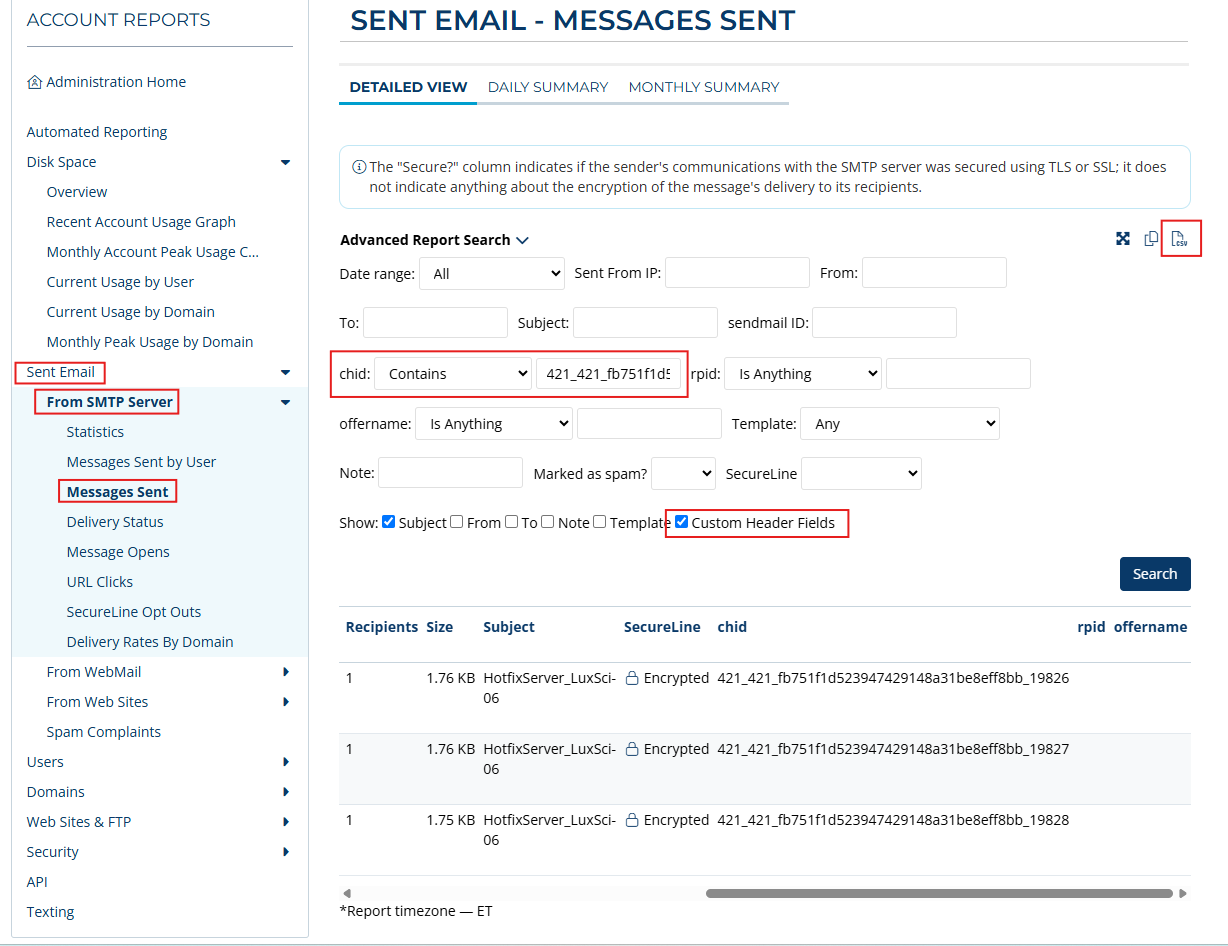
Download the CSV sent report from LuxSci:
-
Login to LuxSci to download the sent report for the specific channel execution ID.
-
Click Reports > Sent Email > From SMTP Server > Messages Sent.
-
Click Custom Header Fields.
-
Set
chid:Contains="{ChannelExecutionID}_{OfferTemplateInstanceID}_{Channel.ID:N}"
Thechidvalue is formatted as follows:
chid: {ChannelExecutionID}_{OfferTemplateInstanceID}_{Channel.ID:N}_{RPContactID}
For example:421_421_fb751f1d523947429148a31be8eff8bb_19828
Do not include theRPContactIDfrom thechidsearch to return all the records from specific channel execution ID.
You can use the following queries to get the values with the associated Workflow ID, which can be found in the Interaction results window.
You can findChannelExecutionIDandOfferTemplateInstanceIDin the ops db using this query:SQLSELECT [WorkflowID], [ChannelExecutionID], [OfferTemplateInstanceID] FROM [OFFERHISTORY_TABLE] WHERE [WorkflowID] = [WORKFLOW_ID];You can find
ChannelIDin the ops db using this query:SQLSELECT [ChannelExecutionID], [WorkflowAssociationInstanceID], [ChannelID] FROM [op_ChannelExecution] WHERE [WorkflowAssociationInstanceID] = [WORKFLOW_ID]; -
Click Search.
-
Click the CSV button to download the sent report.
-
-
Extract the
RPContactIDandChannelExecutionIDfrom the CSV file:
Open the downloaded CSV file in Excel. Split the value ofchidto get theRPContactIDandChannelExecutionID.

-
Create a table in the data warehouse and insert the extracted
RPContactandChannelExecutionID.
Sample query:
SQL ServerSQLCREATE TABLE RECOVERYDATA ( [RPContactID] BIGINT NOT NULL, [ChannelExecutionID] INT NOT NULL ); INSERT INTO RECOVERYDATA VALUES (11, 4232);Snowflake
SQLCREATE TABLE DEMORES.PUBLIC.RECOVERYDATA ( "RPContactID" BIGINT, "ChannelExecutionID" INT ); INSERT INTO DEMORES.PUBLIC.RECOVERYDATA VALUES (11, 4232); -
Perform catalog sync in RPI.
-
Create attributes from the created table.
-
Create join between the Offer History (OH) table and the created table using
RPContactID. -
Create a selection rule to target the record in the created table; this will serve as the suppression when configuring the audience. For example:
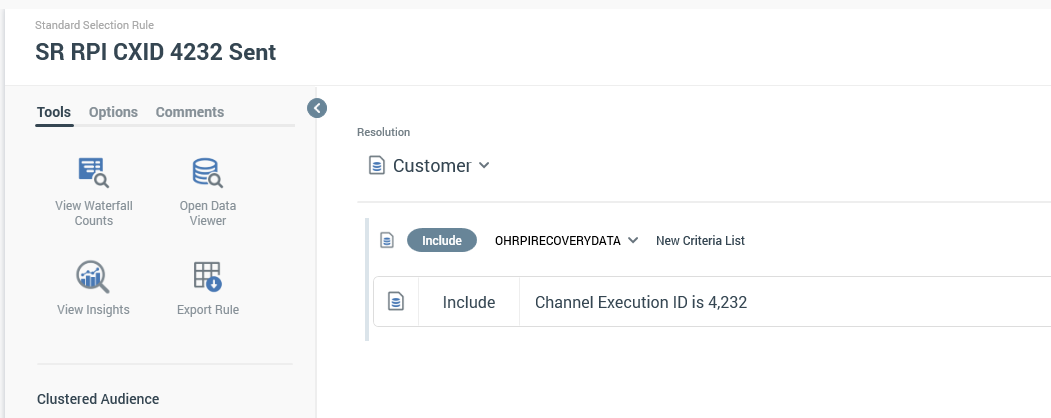
-
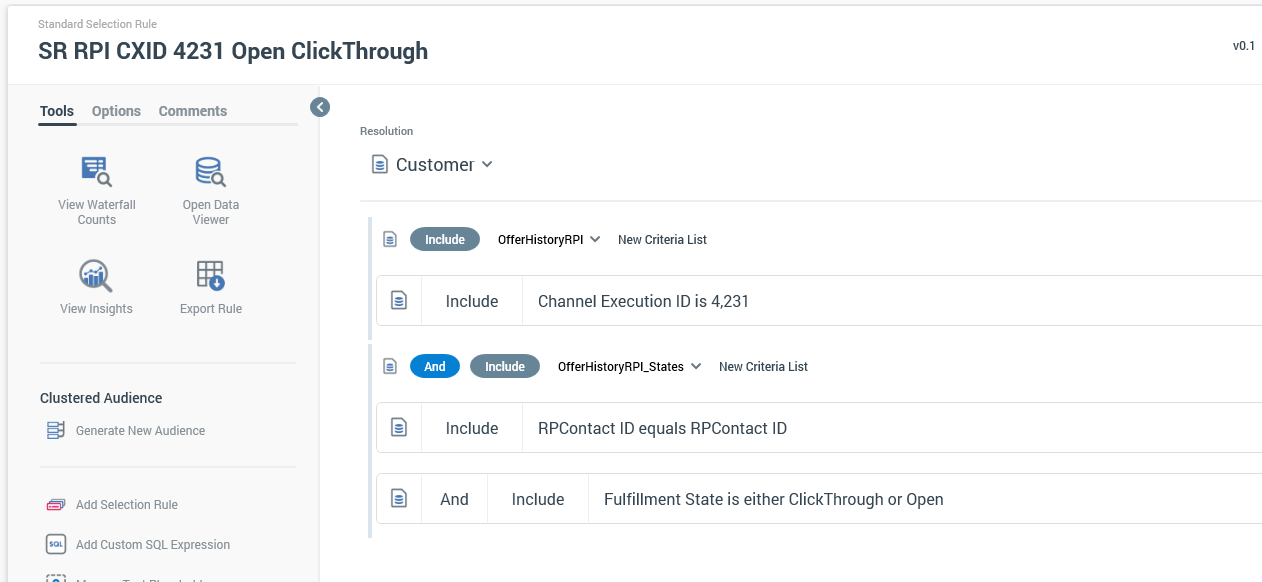
Create a selection rule to target the failed IA input (Open, ClickThrough, etc.). For example:
-
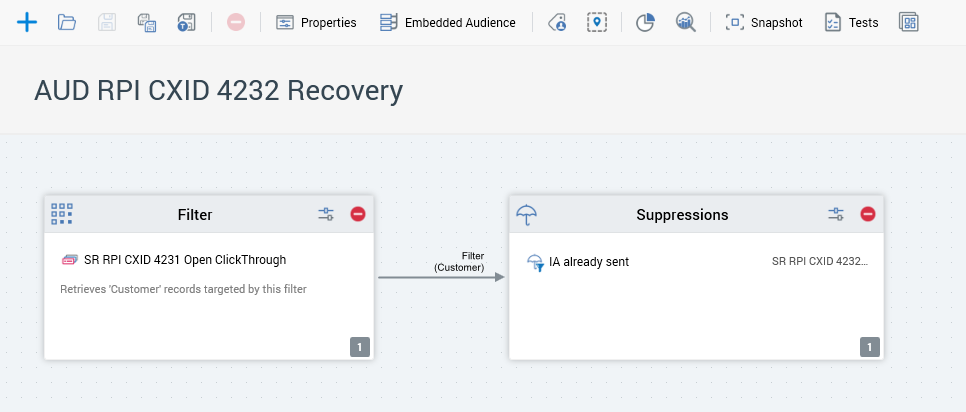
Create an audience using the selection rule to target the failed IA input and suppression using the selection rule for the records that were already sent by the failed IA. For example:
-
Stop the failed workflow activity.
-
Create a single recurring workflow and configure the batch audience to target the input from the failed IA.
-
Execute the workflow. It should select the incoming recipient as targeted by the failed IA input and suppress the records that were sent previously by the failed IA.