

Overview
Regional settings (locale, time zone, and currency formatting) are not managed by Kubernetes.
Instead:
-
Kubernetes does not set currency or locale
-
Each container determines regional settings at runtime
-
Regional behavior depends on:
-
The base OS image
-
Installed locale packages
-
Environment variables
-
-
Containers often default to UTC time zone
Time zone configuration
Time zone is typically set using the TZ environment variable.
Example (Docker Compose yaml):
services:
  app:
    image: my-dev-app
    environment:
      - TZ=UTC
Example (Kubernetes yaml):
env:
  - name: TZ
    value: UTC
Locale configuration
Locale determines:
-
Number formatting
-
Date formatting
-
Currency formatting
-
Character encoding
Common environment variables:
-
LANG→ default locale -
LC_ALL→ overrides all locale categories -
LC_TIME→ date/time formatting -
LC_MONETARY→ currency formatting
Example:
environment:
  - LANG=en_US.UTF-8
  - LC_ALL=en_US.UTF-8
Currency behavior
There is no direct currency setting at the container level. Currency formatting depends on:
-
Application runtime (.NET, Java, etc.)
-
Active locale (
en_US,fr_FR, etc.) -
Data type and formatting logic
Example:
-
en_US→ $1,000 -
de_DE→ 1.000,00 €
Locale must be installed in the image
The locale must be installed and generated inside the container image.
If it does not exists, you may see errors such as:
locale: Cannot set LC_ALL to default locale
When the above condition applies, the following steps can be used to enable locale:
RUN apt-get update && apt-get install -y locales \
    && echo "en_US.UTF-8 UTF-8" >> /etc/locale.gen \
    && locale-gen
After this, locale-based commands should work as expected:
>  locale currency_symbol
# $
Workaround strategies
To avoid unintended global regional behavior, the following workaround can be applied at the application level.
1. Override regional date format
To prevent dates from being affected by system or container locale settings, use custom date formats instead of predefined formats such as:
-
“Short date”
-
“Long date”
-
“Long date and time”
-
These predefined formats depends on the active locale and may vary across environments.
-
Common Date/Time Format Tokens
|
Token |
Meaning |
Example |
|---|---|---|
|
MMM |
Abbreviated month name |
Feb |
|
MMMM |
Full month name |
February |
|
MM |
Month number (2 digits) |
02 |
|
dd |
Day (2 digits) |
06 |
|
yyyy |
4-digit year |
2026 |
|
HH |
24-hour format (00-23) |
14 |
|
hh |
12-hour format (00-12) |
02 |
|
mm |
Minutes |
05 |
|
ss |
Seconds |
09 |
Format tokens are case-sensitive.
Examples:
MMM dd yyyy HH:mm:ss
→ Feb 06 2026 14:05:09

MM/dd/yyyy
→ 02/06/2026

dd-MM-yyyy
→ 06-02-2026
2. Override currency formatting
Currency formatting is typically driven by system locale or application settings. To avoid unintended currency changes, disable automatic currency formatting:
-
For decimal attributes, set number formatting to None.
-
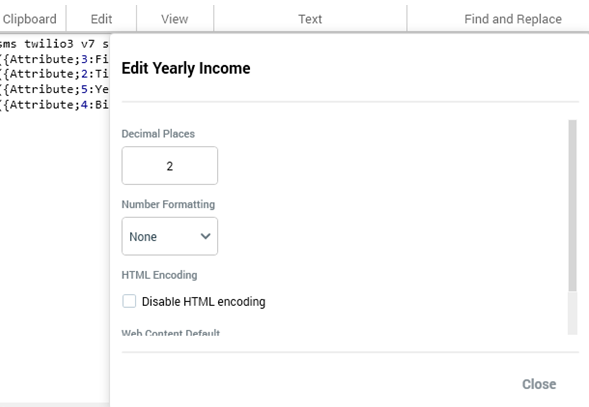
This prevents automatic application of a locale-based currency symbol.
-
Explicitly define currency in content instead of relying on system formatting:
-
Manually prepend the currency symbol (e.g., $).
-
Explicitly define the currency within the content or template.
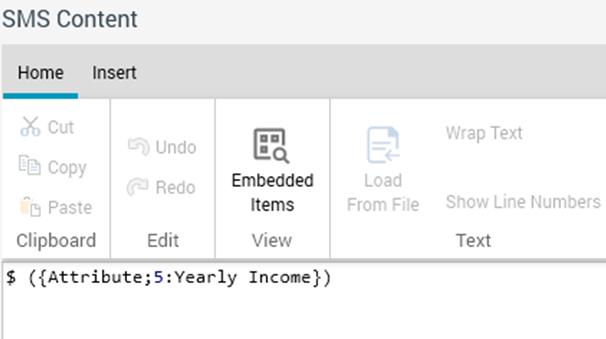
This ensures consistent display across environments regardless of locale.
-
3. Time zone
Currently, there is no application-level workaround for time zone differences.